Timecard Review Function
The TC Review function works as a tag that you can apply to indicate you “reviewed” a TC (before approving it). It’s not required to use this function and you can still approve TCs without using the TC Review function.
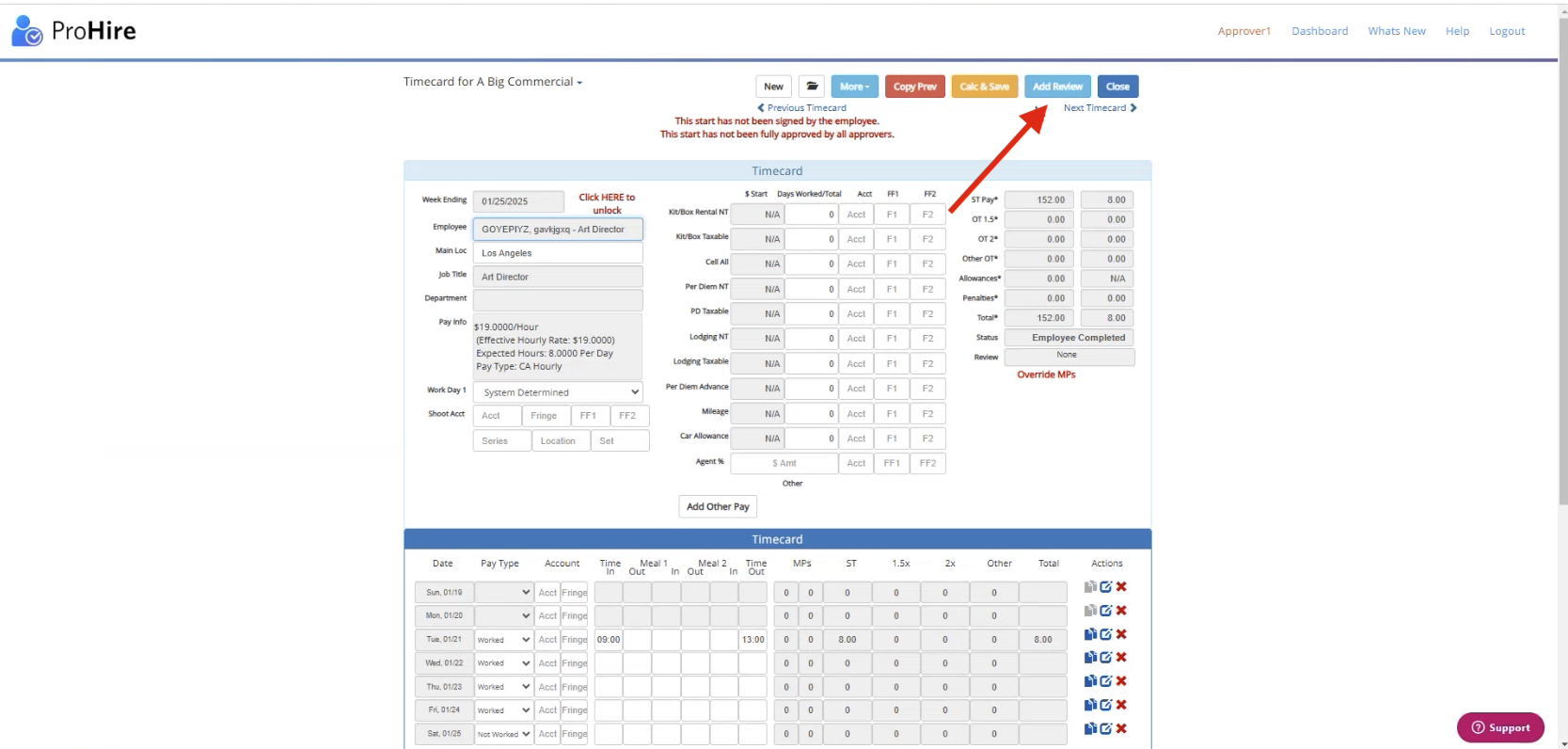
The “Add Review” button is enabled when the EE has submitted their TC or when the approver signs on behalf of the employee. The TC status will say “Employee Completed.”
1: Click into TC
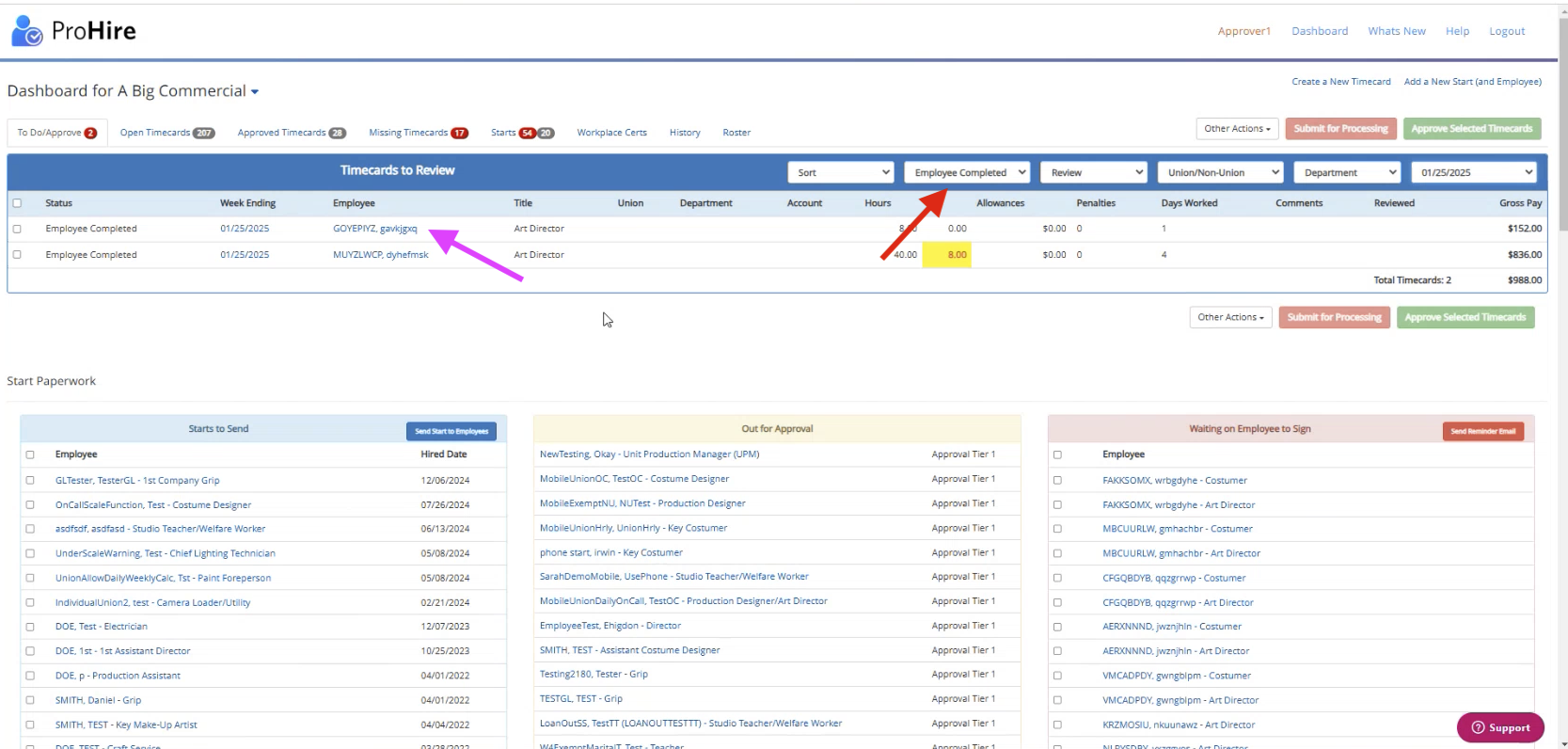
2: Click “Add Review” on the TC
3: Select an option: Reviewed, Reviewed and Send to Next Approver, To Review, and Kick Back to Employee.
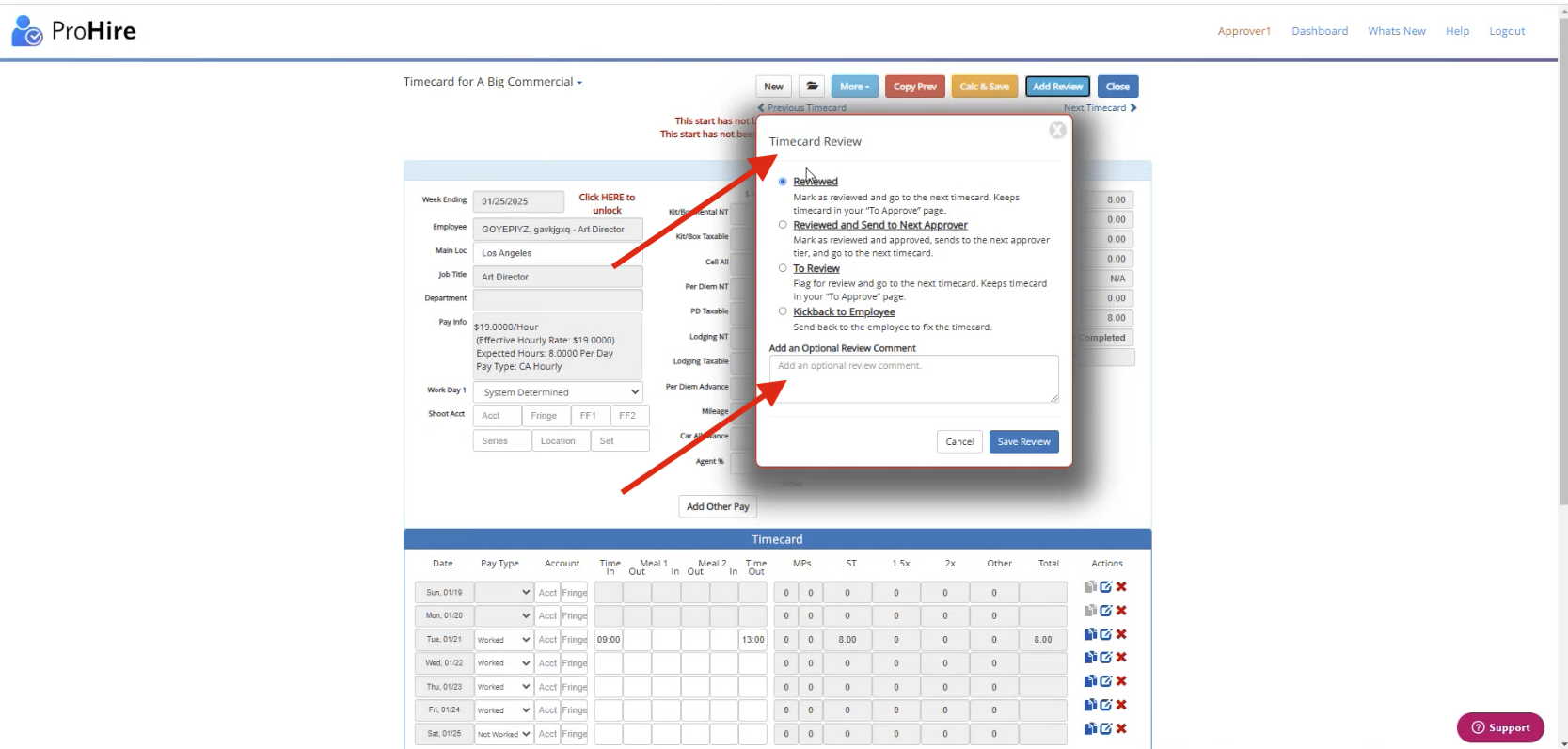
The different review statuses:
- Reviewed: This TC looks good to either send to the next approver or submit for processing
- Reviewed and Send to Next Approver: Send it to the next approver right away
- To Review: Used to indicate it will be reviewed later
- Kick Back to Employee: Sends the TC back to the EE to make changes (also available from the "More" drop-down)
- Add an Optional Review Comment/Note: This is a note to yourself visible to only you. The next approver can add their own notes which will be visible only to them.
4: Click “Save Review” and the next TC (from your filtered sort order from the To Do/Approve dashboard) will open up. If you click “Previous Timecard” or reopen the previous timecard, you can update your review status and update your notes if needed.
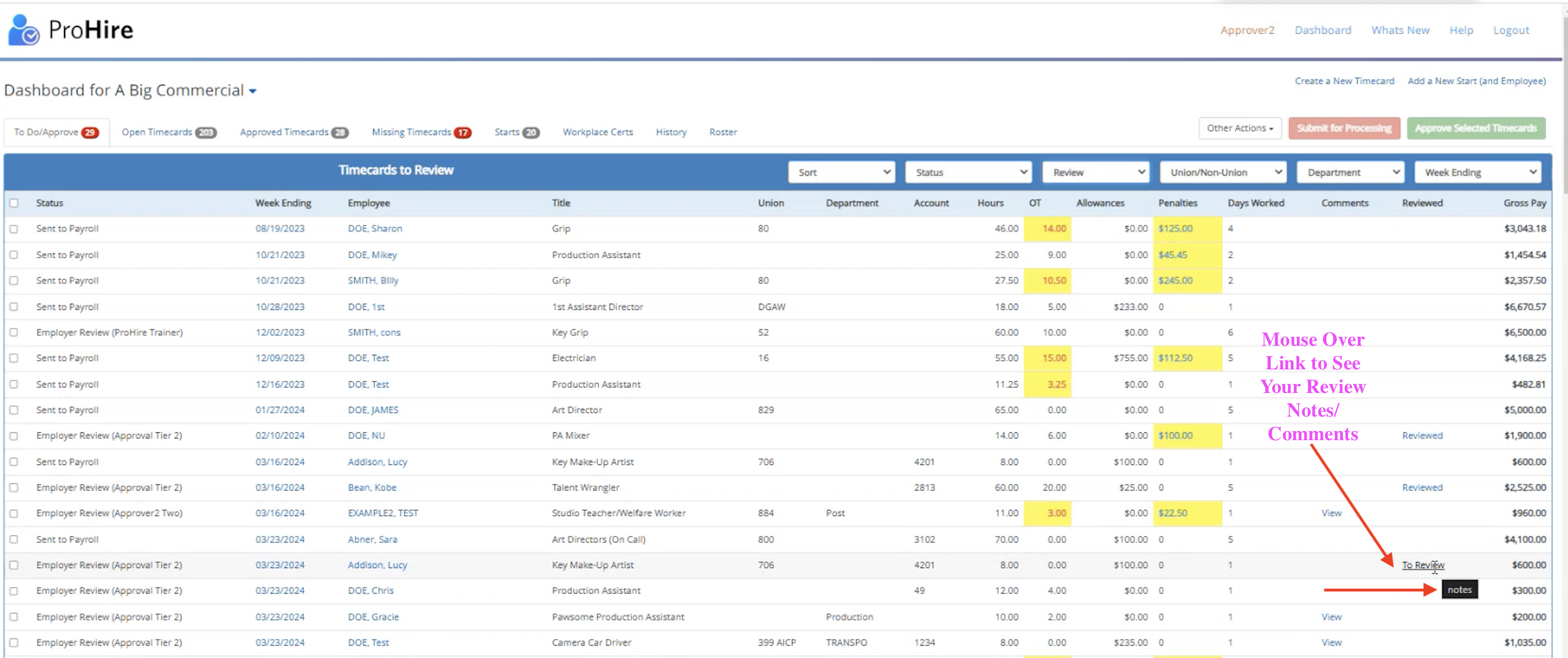
Once you’ve gone through and reviewed all of your TCs, you can use the Review Dropdown on your To Do/Approve dashboard to filter for different review statuses, then you can approve your timecards normally.
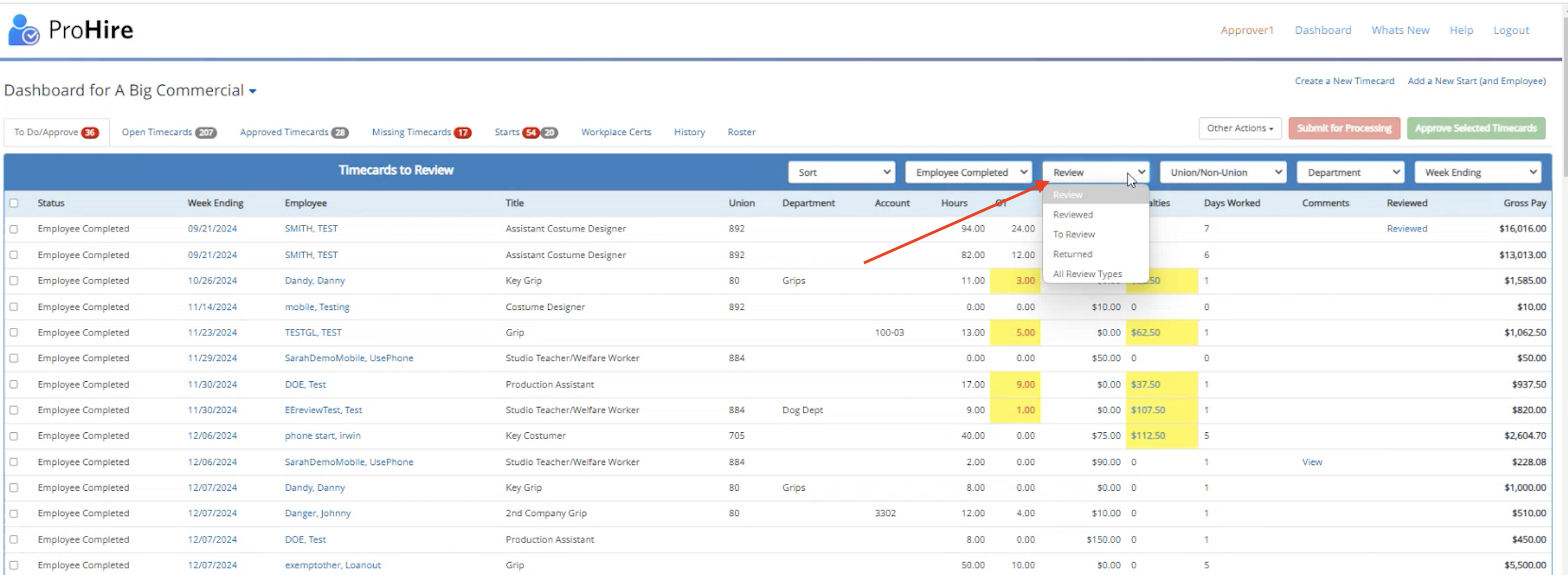
On the To Do/Approve dashboard, you can mouse-over the review links in the Reviewed column to see your review comments/notes.