ProBooks – Cashet PCard Integration Setup & Process
This article covers the setup and process for exporting Cashet envelopes to ProBooks
- Provide the GL Configuration and Cashet ID# to your Cashet contact
- Using the grid below, replace Account as it applies to your Chart of Accounts (e.g. XX-XX)
- Example: the Cashet ID# (aka Revolution ID#) for bestshowever.sigmalcoud.io would be bestshowever
- Let Revolution support know you would like to integrate with Cashet. We’ll enable your project to accept Cashet exports.
- Before exporting envelopes from Cashet, ensure the PCard vendors in ProBooks are setup. They will need:
- Card ID: last 6 digits of Pcard account#
- Pcard enabled: is checked
- Pcard default account: has the default GL account for their PCard
- Petty Cash Enabled also needs to be checked with the applicable GL code entered

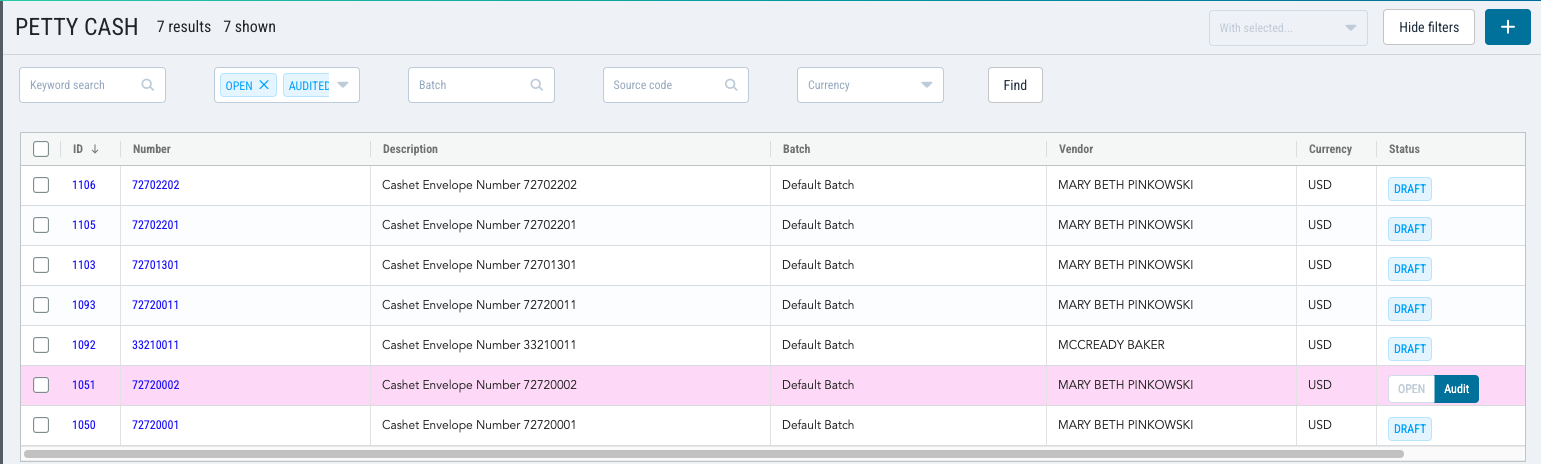
- You’re all set to export envelopes from Cashet! Files typically appear in Probooks Petty Cash module within 5 minutes. If they take longer than 15 minutes, please reach out to support@revolutiones.com.