








How to use Transaction Posting
Transactions can be posted right away from within the transaction itself. This article covers the Transaction Posting program specifically.
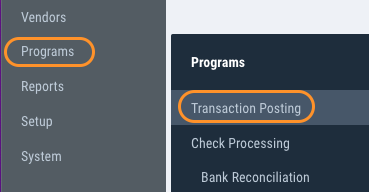
1) From the Left Panel, navigate to Programs > Transaction Posting
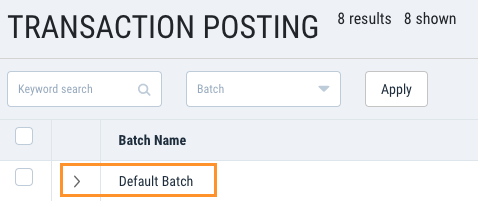
2) Click the right arrow next to batch to display the contents of the entire batch
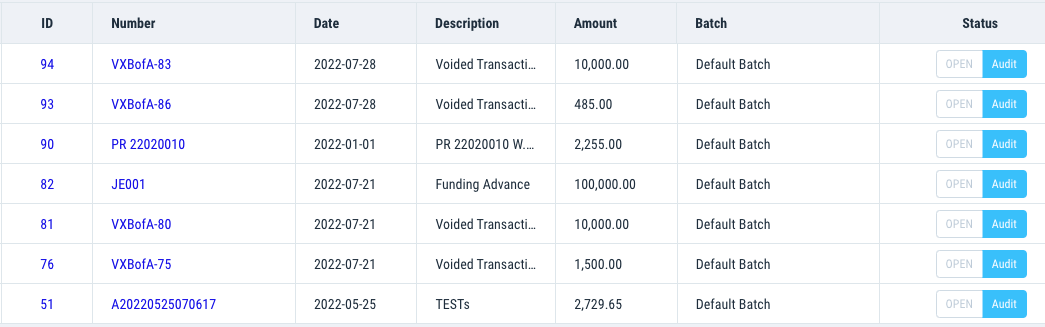
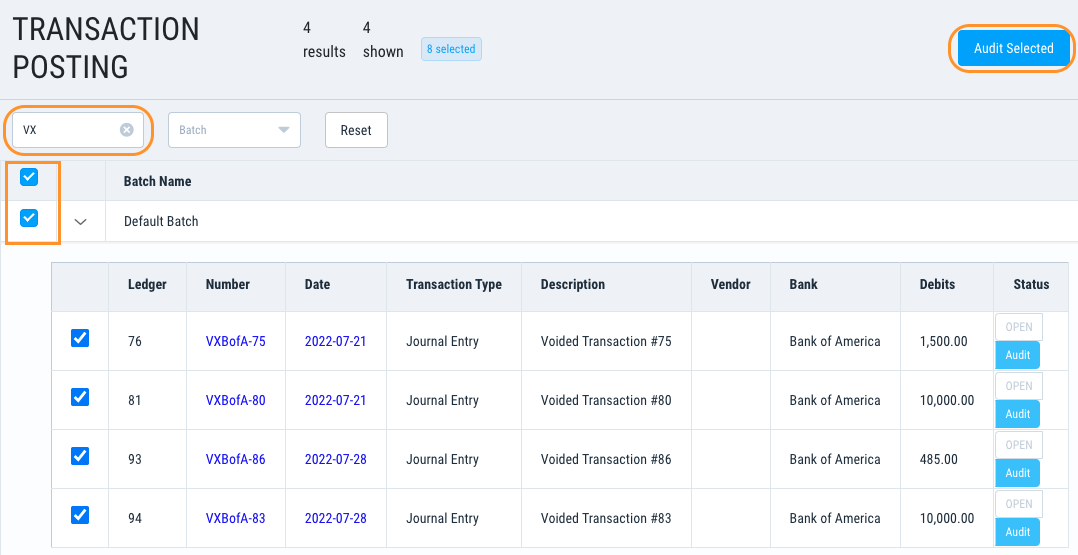
3) You can also do a keyword search or filter by batch if you have multiple batches. Click the check box at top of batch to select all transactions, then click Audit Selected.
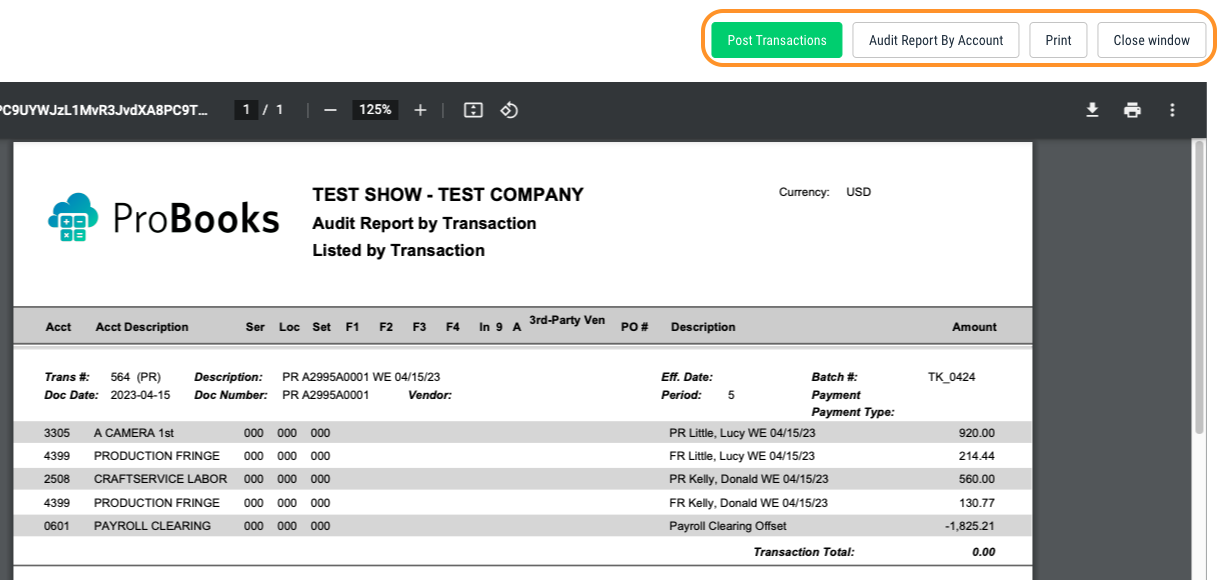
4) From the Report Viewer, you can click Print to print the Audit Report by Transaction or select the Audit Report by Account. When ready, click Post Transactions.
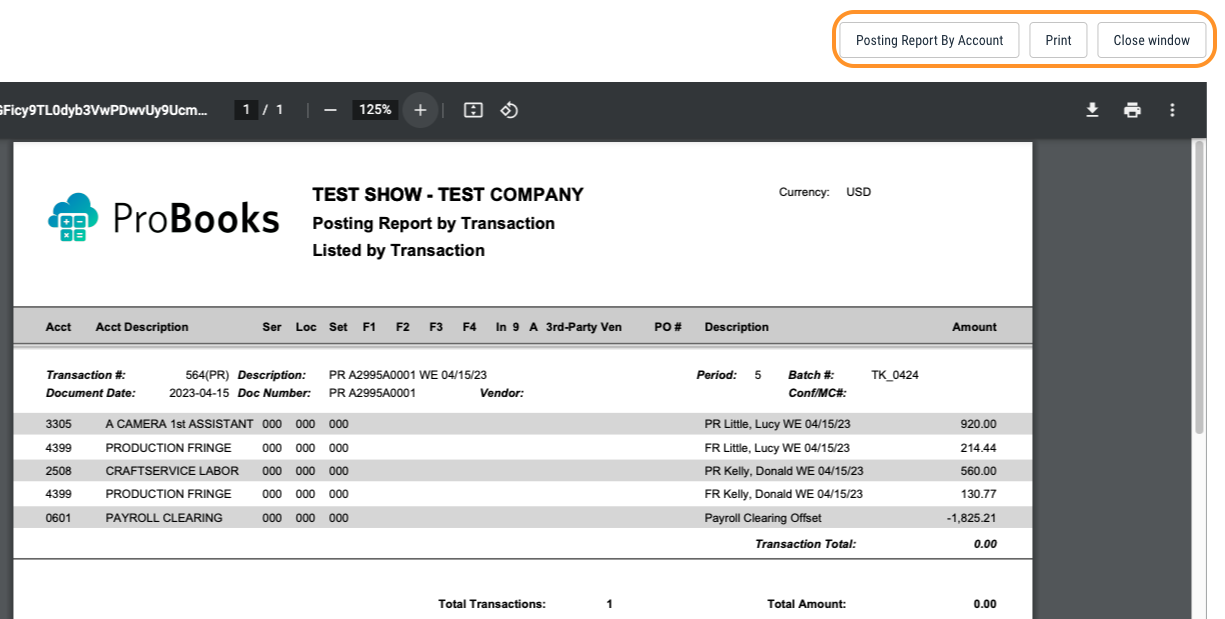
5) The Posting Report by Transaction will display. Click Print, select the Posting Report by Transaction or select Close window.
Questions? Need more help?
Please email support at support@revolutiones.com or call 800-985-9238 M-F 7am-6pm (PST). If it's outside our business hours, we will get back to you as soon as we can.

