








How to Upload I-9 Document Pictures for an Employee
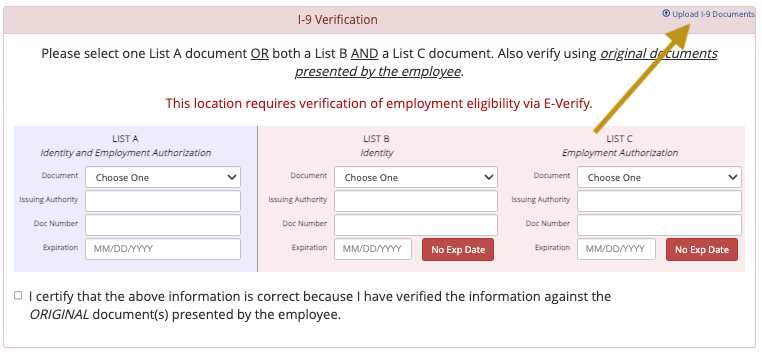
1) Select the employee link from the "Starts" or "Roster" tabs to view the employee I-9 document details, then select the “Upload I-9 Documents” link found in the right corner of the I-9 verification.
- It's easiest to approve I-9s when approving any start under "Starts for me to approve."
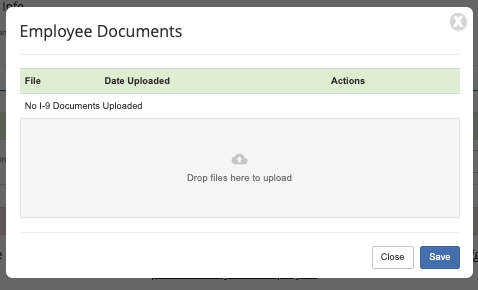
2) Select the empty field within the upload box and choose the document(s) from your computer (or drag them in) then click "Save"
- If the employee didn't enter their I-9 details (and there is no green "Import I-9 Data" button, you can enter their details for them.
Questions? Need more help?
Please email support at support@revolutiones.com or call 800-985-9238 M-F 7am-6pm (PST). If it's outside our business hours, we will get back to you as soon as we can.

