How to Upload A Signed, Paper Start
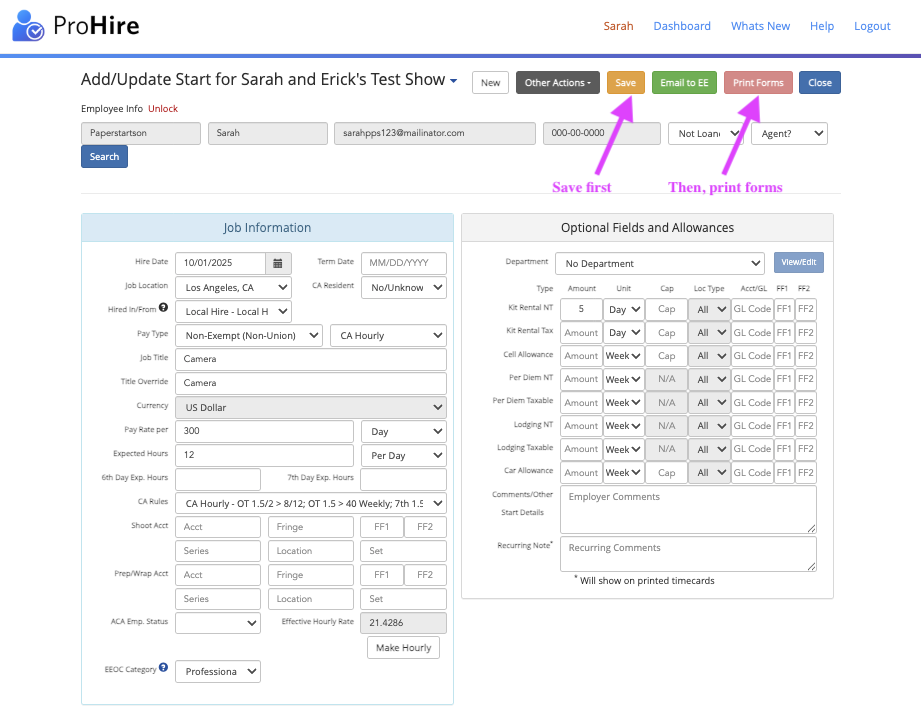
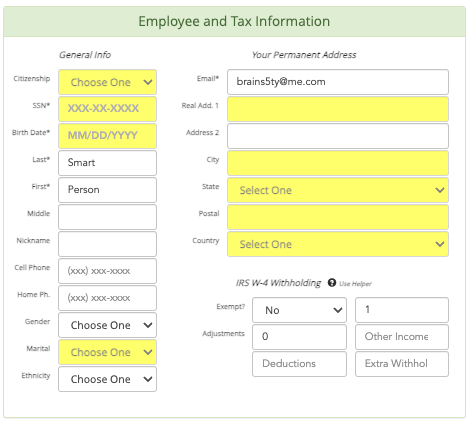
1) Create the start in ProHire under "Add A New Start (and Employee)," and make sure to enter their full SSN in the field as well as all other information. Once filled out, click the orange “Save” button, then "Print Forms" and fill the forms out on printed paper or a PDF.
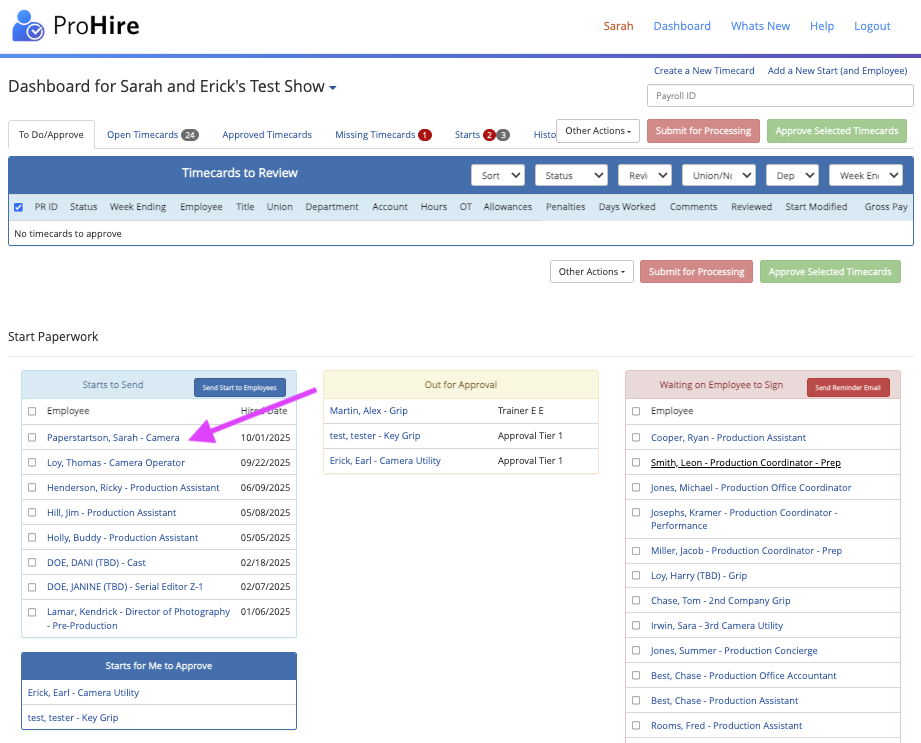
2) Go back to your dashboard, and click their name under “Starts to Send”
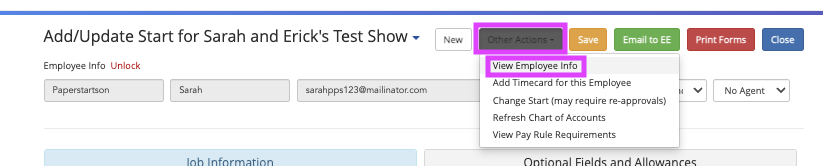
3) Click “Other Actions,” then “View Employee Info”
4) Make sure you’ve compiled their start into one PDF and had the EE and approver sign ALL forms before uploading their signed forms:
*Start Form (included)
*I-9 (included)
*W-4 (if individual) or W-9 (if loanout) (included)
*For loanouts, additionally, add their articles of incorporation and a letter from the IRS saying they’re taxed through their loanout
*Optionally you can add a direct deposit form and a voided check or direct deposit slip if they’d like to get paid through direct deposit. DD form can be found here.
*Optionally, a kit rental itemization form if they're granted a kit rental. Kit form can be found here
(All forms can be also be found here.)
- Once you have the PDF including all the forms, click the orange “Paper Forms” button, then “Upload Signed Forms,” which will complete their start. If you didn’t make one document including everything, you can upload additional forms on the green “Documents” button (make sure to send the forms to your payroll coordinator as well).

- Then, you'll click "save" on their start after keying in their EE information:
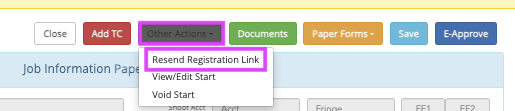
5) Click “Other Actions,” then “Resend Registration Link” if you’d like them to be able to create a ProHire account and do their timecards online.