








How to Update Your Start Paperwork
If the information on your start paperwork (like your rate or job title) is incorrect, please don’t click “Next,” and reach out to your production to update your information.
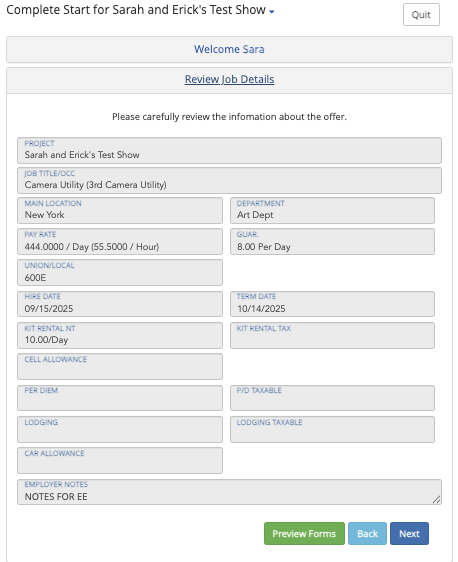
If you noticed you've made a mistake on your completed start paperwork and/or need it opened back up so you can make changes, please reach out to your production to kick back your start.
Log in HERE if you’ve already made an account.
As long as you have a red “Finish Start Paperwork” button on your employee dashboard, you can edit anything in your start paperwork, but it is not complete.
You’ll always want your start paperwork to be complete to ensure timely, accurate payments. To complete it, you’ll click “Next” on each module starting from the very top, filling in anything that’s missing, until you sign/approve your signature which completes your start. Then, click “OK” on the pop-out which says “Start Approved,” this will bring you to your dashboard where you can create your timecard.
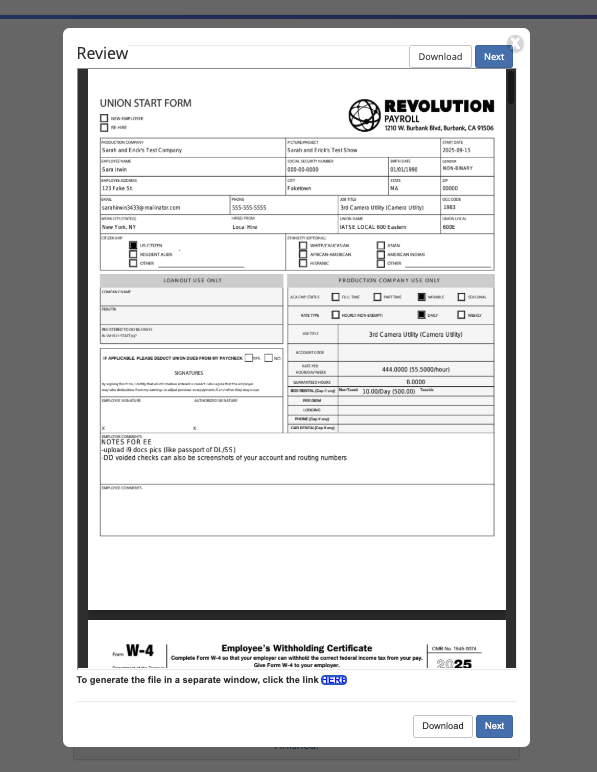
Some people get stuck on the “Forms Review” module. When you click “Review Forms,” please wait for the window to pop up (it may take a few seconds), click “Next” on the window, check off the acknowledgments, sign, and approve your signature to complete your start.
Once you click “Review Forms” the pop-up will look like this:
Questions? Need more help?
Please email support at support@revolutiones.com with your full name, the name of the project(s) you're working on, and a good email or phone number for us to reach you at or call 800-985-9238 M-F 7AM-6PM (PST). If it's outside our business hours, we will get back to you as soon as we can.

