








How to Update a Completed Start
1. Click the completed start from the Roster or Starts tab
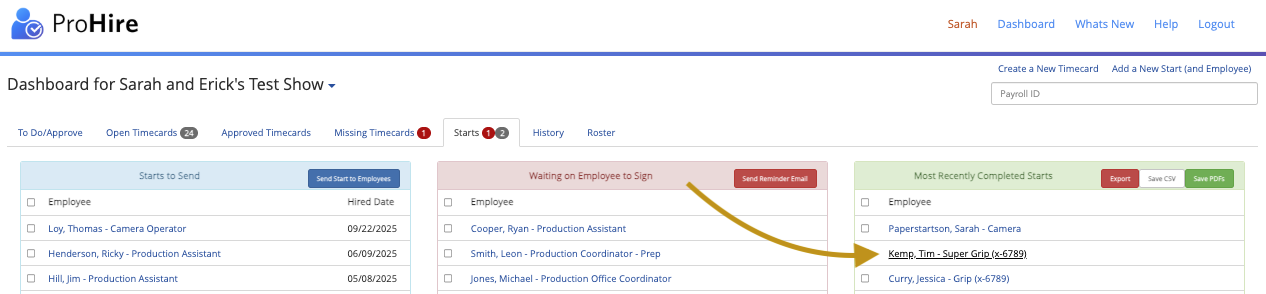
- On the “Starts” tab, Click “View By Last Name” in any window Scroll to find the start you’re looking for or search their last name by holding Command+F on a Mac or Control+F on a PC which will open a "Find" window where you may type the first or last name of the individual you're looking for.
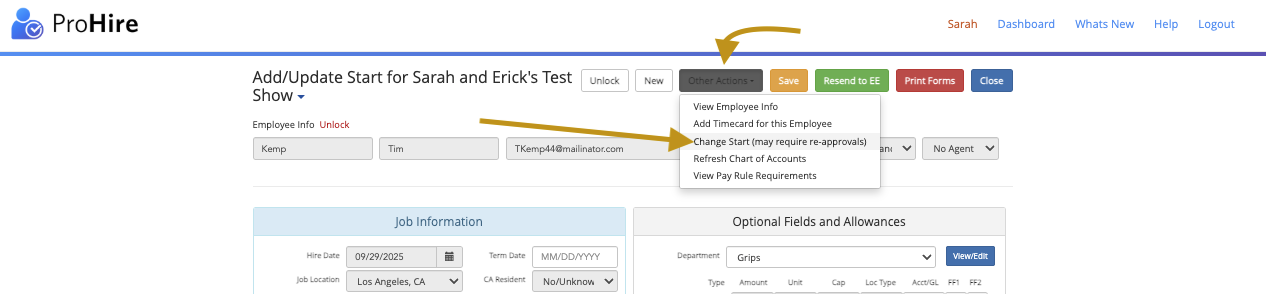
3. Click “Other Actions”, then “View/Edit Start” on the Employee Info Page

4. Click “Other Actions” again, then “Change Start” to unlock the fields (for example, to change their rate)
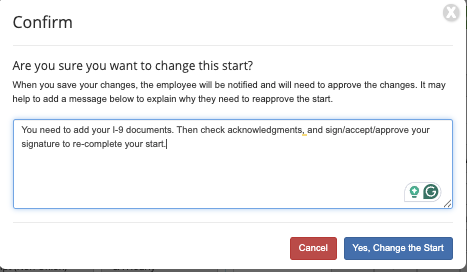
5. A window will pop up asking what you're changing (that will get sent to the employee), click OK once you’ve typed what you’re changing on their start. They may need directions to re-check acknowledgments and to re-sign/approve their start to re-complete it. If you’re not changing anything, but they need to make an update on their end, you can write that as well.
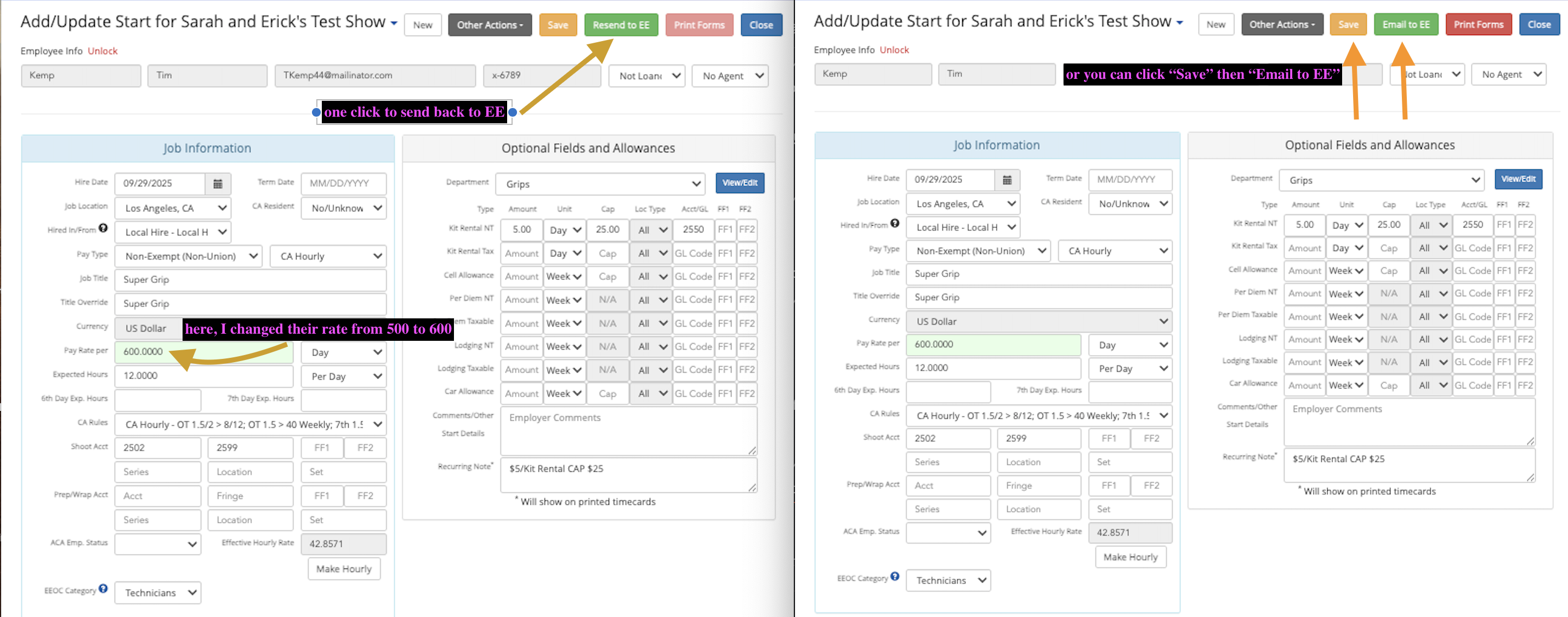
6. Make any changes to the start (such as their rate), click "Save" and then "Email to EE" or just one click of “Resend to EE” that saves and sends the updated start.
- If you have a day or week rate and leave the expected hours blank, it will default to an 8-hour day or 40-hour week to calculate OT. Please note, when updating the rate, after changing the rate, press "Tab" so the Effective hourly rate at the bottom updates.
- If you’re not changing anything, and the EE needs to change something on their end, make no changes, just click “Resend to EE” after clicking "Change Start" and writing them a note.
- Updating a completed start will change the start's status to "Waiting on Employee to Sign."
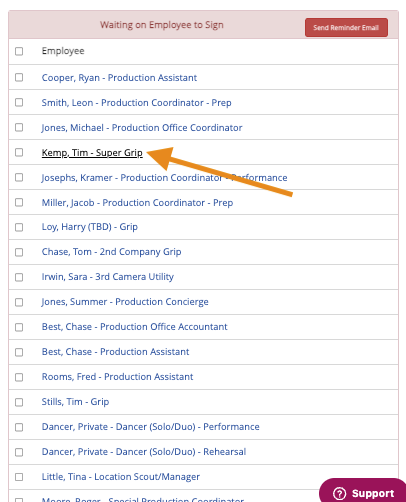
7. Employees will have to check the acknowledgments and re-sign their paperwork on their end (they may need direction), agreeing to your change; then their start will move back to completed.
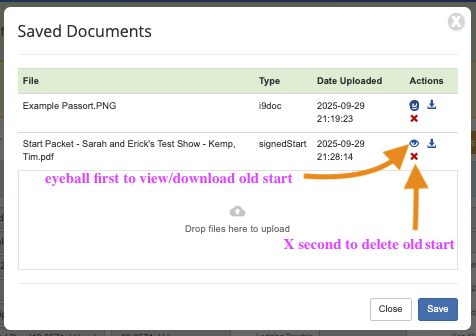
8. To regenerate their start paperwork, after the employee has signed off on the change, under the green “documents” button, first save, download, and delete the start paperwork that’s there by clicking the eyeball button to view it. Download it from there, giving it a title like “(their initials) old start $500 rate”, and then click the red X to delete it.
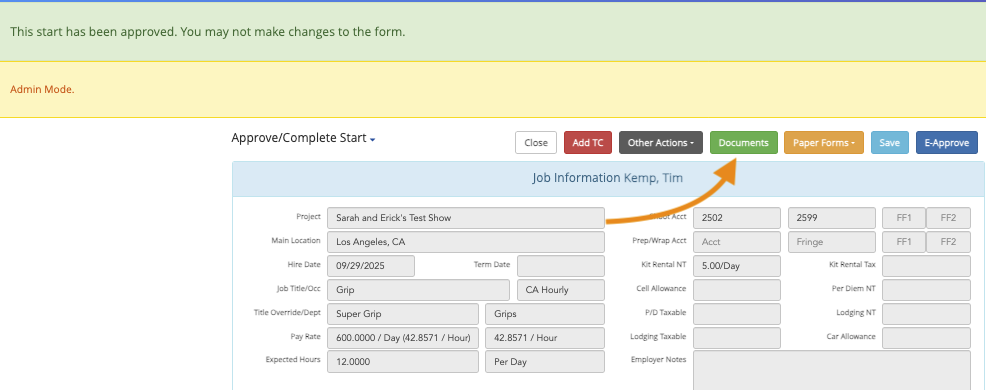
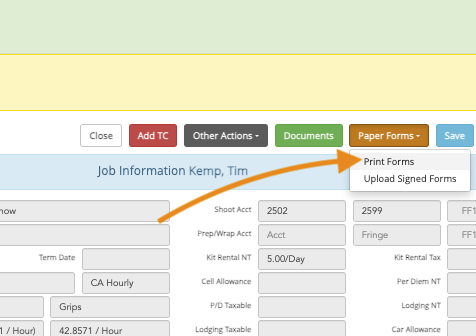
9. After Saving and Deleting the old signed start, click the orange “Paper Forms” button and then click “Print Forms.” That will generate the new start forms. Download those and give it a title like “(their initials) updated start $600 rate.” Save both their old and new starts under the green “Documents” button.
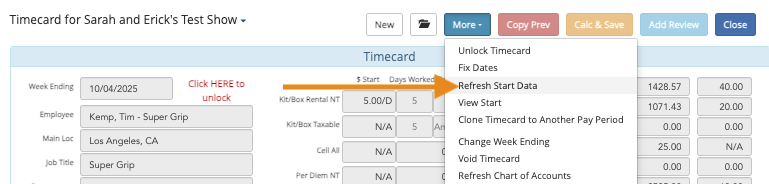
12. Lastly, if they have a timecard in the system, please click it and then click “More” -> “Refresh Start Data” -> “Calc & Save” on the timecard, which will update the timecard with the changes you (or they) made to the start.
Questions? Need more help?
Please email support at support@revolutiones.com or call 800-985-9238 M-F 7am-6pm (PST). If it's outside our business hours, we will get back to you as soon as we can.

