








How to Sign Up For Direct Deposit (DD)
There are 2 ways to sign up for DD:
1) While completing your start paperwork
or
2) After your start paperwork is complete and locked for editing
Please navigate to which directions you'll need
1) While completing your start paperwork:
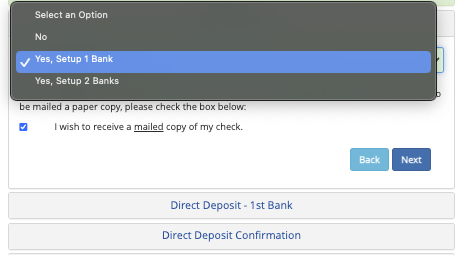
Select "Yes, Set up 1 (or 2) Banks" in the DD Module (after completing all of the required modules up until here)
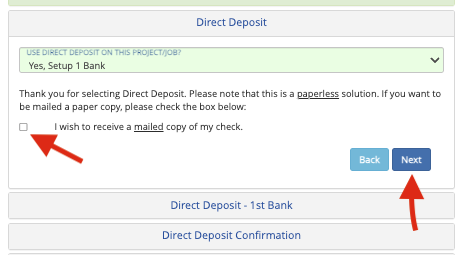
Check or uncheck the "I wish to receive a mailed copy of my check" (uncheck to go paperless), and click "Next"
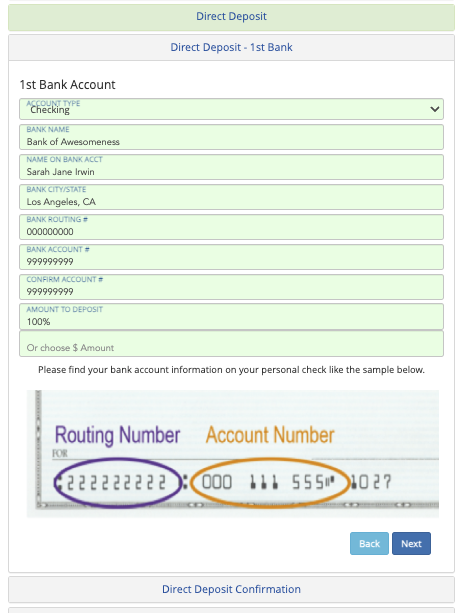
Fill out all of your banking details carefully, especially the account and routing numbers. If signing up for 2 banks, select a percentage to go into each bank (totaling 100% for the 2 banks) in the "Amount to Deposit" section. If signing up for only 1 bank, the "Amount to Deposit" should always be 100%. Then, click "Next"
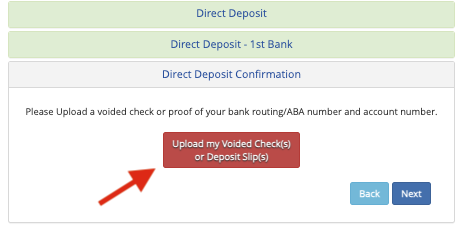
Lastly, upload a picture or screenshot one of the following via the red button:
-A Voided Check
-A Direct Deposit Slip from your bank (available on most major bank's apps)
-A screenshot of your account and routing numbers
Before uploading, it's helpful to re-label the image (such as "*Your Initials* Voided Check" ok"*Your Initials* DD Slip") to easily see what you uploaded in the next screen.
You will not be able to skip this step, this ensures your money goes into the right place!
Lastly, you will be shown what you've uploaded so far to your start including what you uploaded for your DD. You can view what you uploaded via the eyeball, download your image, or click the red "X" to delete it. Please note, if you delete a file, you will not be able to re-upload it and will have to reach out to support@revolutiones.com.
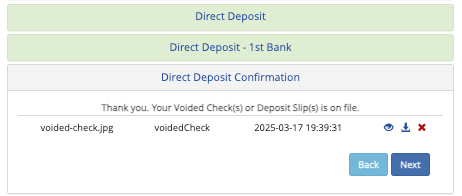
Click "Next" and finish your start paperwork all the way to the end to complete it. Please see this article on fully completing your start paperwork on Mobile.
2) After your start paperwork is complete and locked for editing:
Email this Direct Deposit form to support@revolutiones.com with the following information:
-Name (as on your start paperwork)
-Name of Project you're working on as in our system
-Last 4 of your SSN (so we can identify it's actually you)
-A voided check, deposit slip, or screenshot to confirm your banking account and routing numbers
Questions? Need more help?
Please email support at support@revolutiones.com with your full name, the name of the project(s) you're working on, and a good email or phone number for us to reach you at, or call 800-985-9238 M-F 6AM-6PM (PST). If it's outside our business hours, we will get back to you as soon as we can.

