








How to Review the Approval Flow
This article will go over how to view the approval flow setup in ProHire. Currently, the functionality is limited to view only. If any adjustments are needed please reach out to support@revolutiones.com.
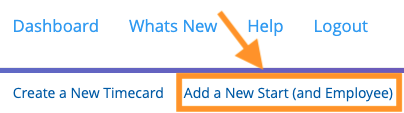
1) In top right of the approver dashboard, click Add a New Start (and Employee)
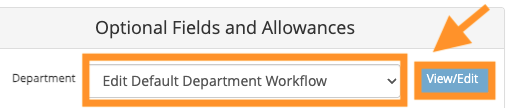
2) Go to Department, under Optional Fields and Allowances, select Edit Default Department Workflow and click View/Edit
Note: Only View is available at this time. Please email support@revolutiones.com to request modifications.
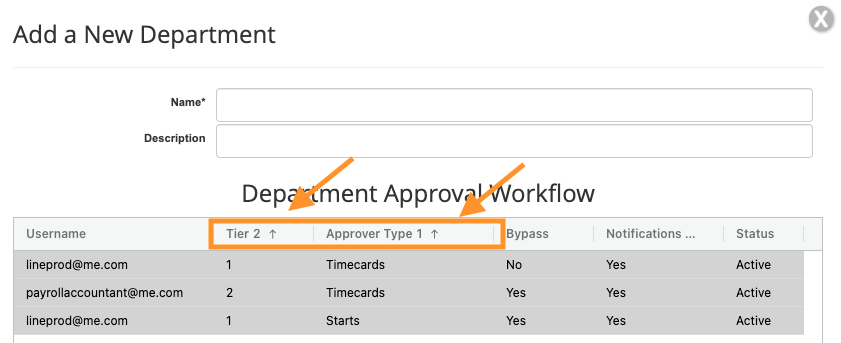
ProTip: Click the Approver Type column, hit shift key, and click Tier column to sort the grid by Approver Type and Tier.
3) To view department specific approval flows, select the Department and click View


ProTip: Click the Approver Type column, hit shift key, and click Tier column to sort the grid by Approver Type and Tier.
Questions? Need more help?
Please email support at support@revolutiones.com or call 800-985-9238 M-F 6am-6pm (PST). If it's outside our business hours, we will get back to you as soon as we can.

