How to Process Payments
Payment Processing is the one place to process all payment types: Computer Checks, EFT, Wire Transfer, and Manual Check.
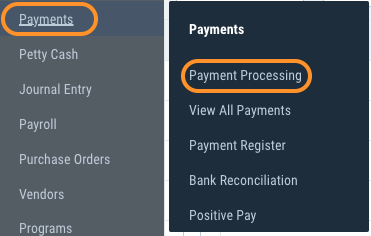
1) From the left navigation panel, go to Payments > Payment Processing.
2) All payment types for the bank will be available to process. Please note only payments of the same kind can be processed in a single payment run.

Protip: Use filters to narrow down the search results. The following filters are available: Bank, Payment Type, Batch and Vendor.
3) Select the payments by checking off the boxes on the left or check the top box to Select All available payments of that payment type. Click Print Selected Payments in top left to proceed.

4) By default, checks for the same vendor will combine to a single payment. EFT numbers are assigned at step 1 of Payment Review. Wire Payments will use the payment number assigned at the time of posting the Accounts Payable Invoice. You have the option to update the payment number if desired. Click Print to proceed.
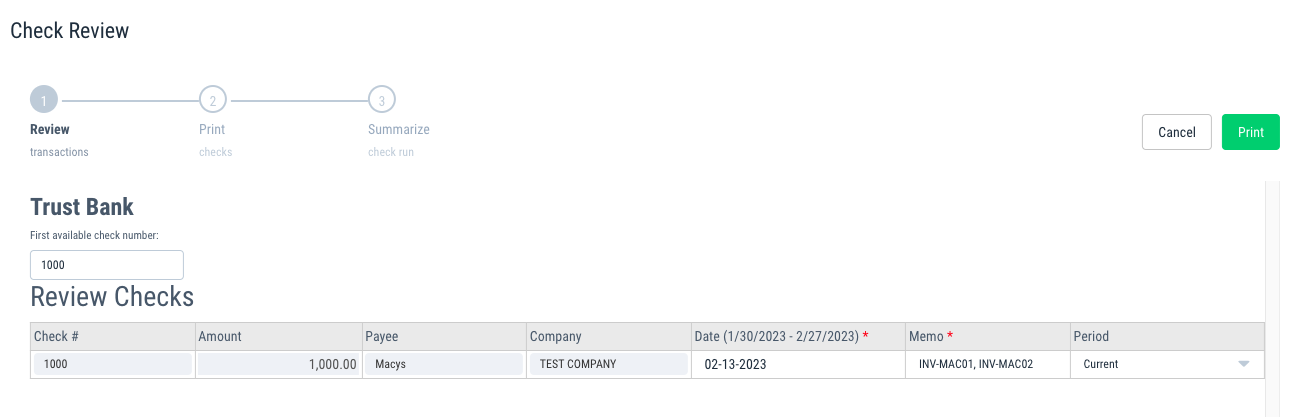
Protip: At this step, you can update the Effective Date of the payment.
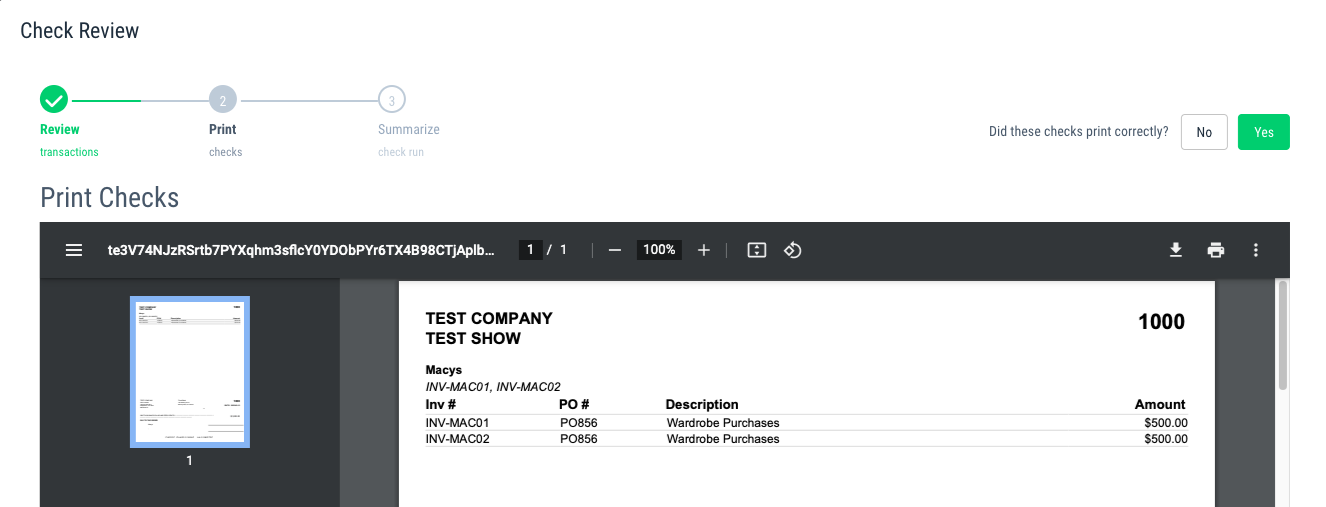
5) The payment will be sent to your default printer. Also, the payment image will be available to save to PDF.
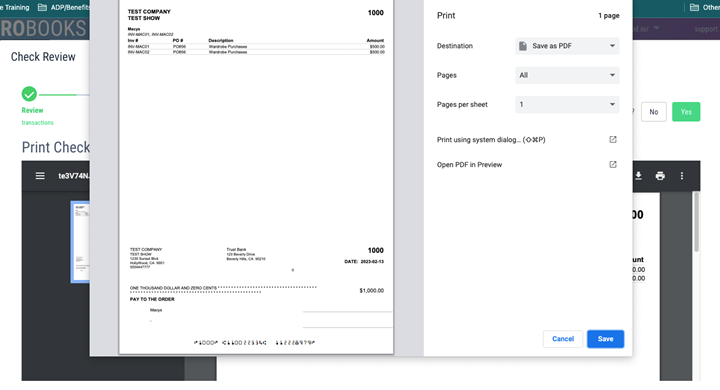
6) If the checks printed correctly, say Yes to the confirmation message. Otherwise, click No and the process will start over.
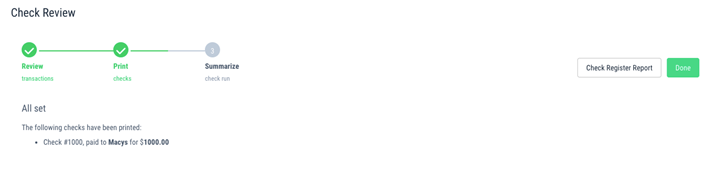
7) In last step of payment review, you have the chance to print the payment register. When ready, click Done to finish the payment process.