








How to Print Timecards
1) Navigate to the To Do/Approve, Open Timecards, or History tabs from the project dashboard. It's easiest from the History Tab!

2) Filters help narrow the timecards to specific timecards to print
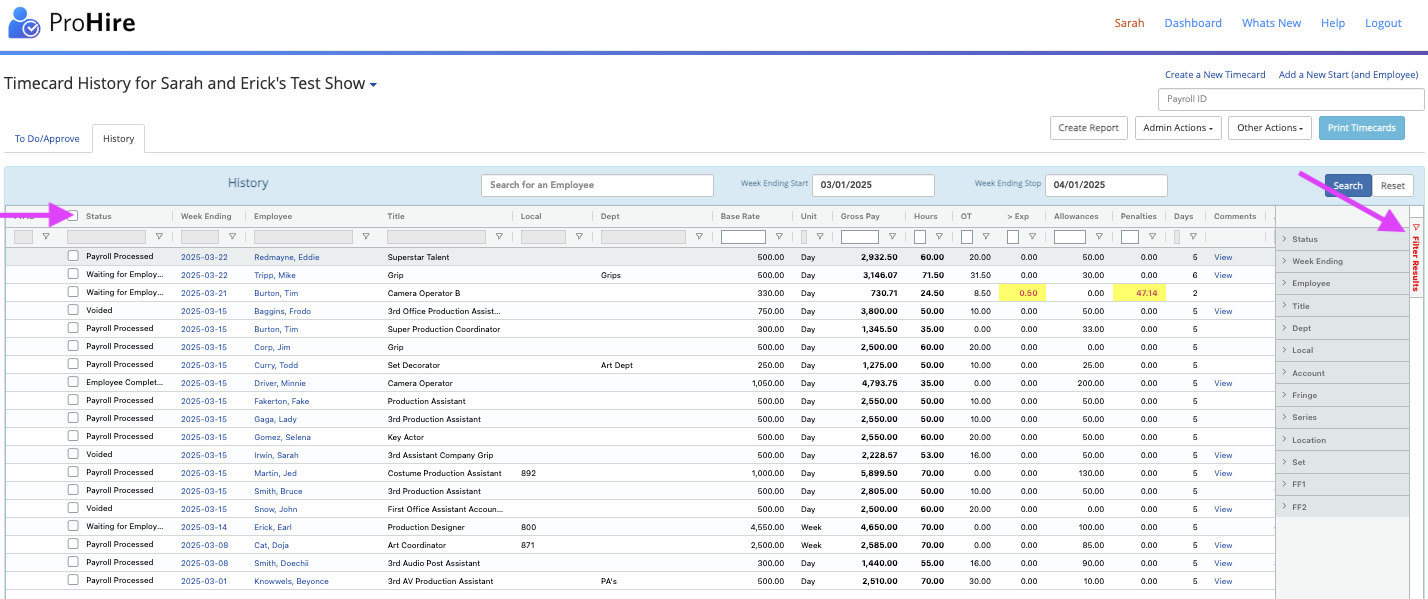
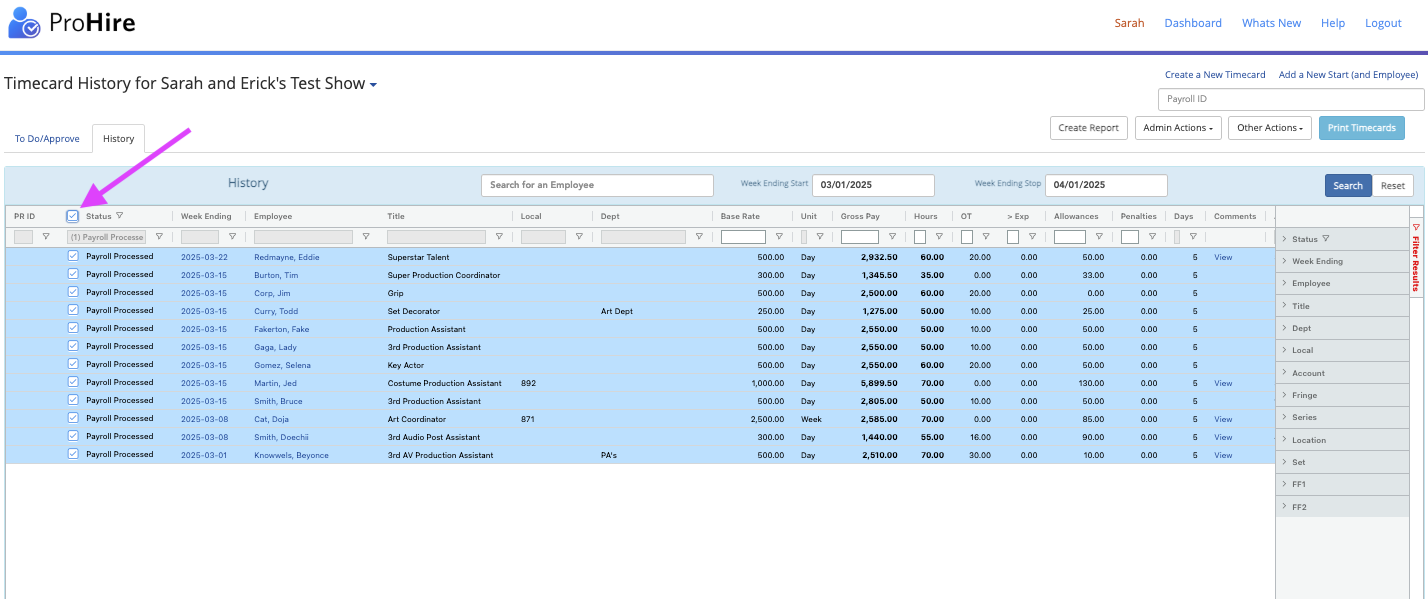
3) Select all timecards by clicking the checkbox on the column header or select individual timecards
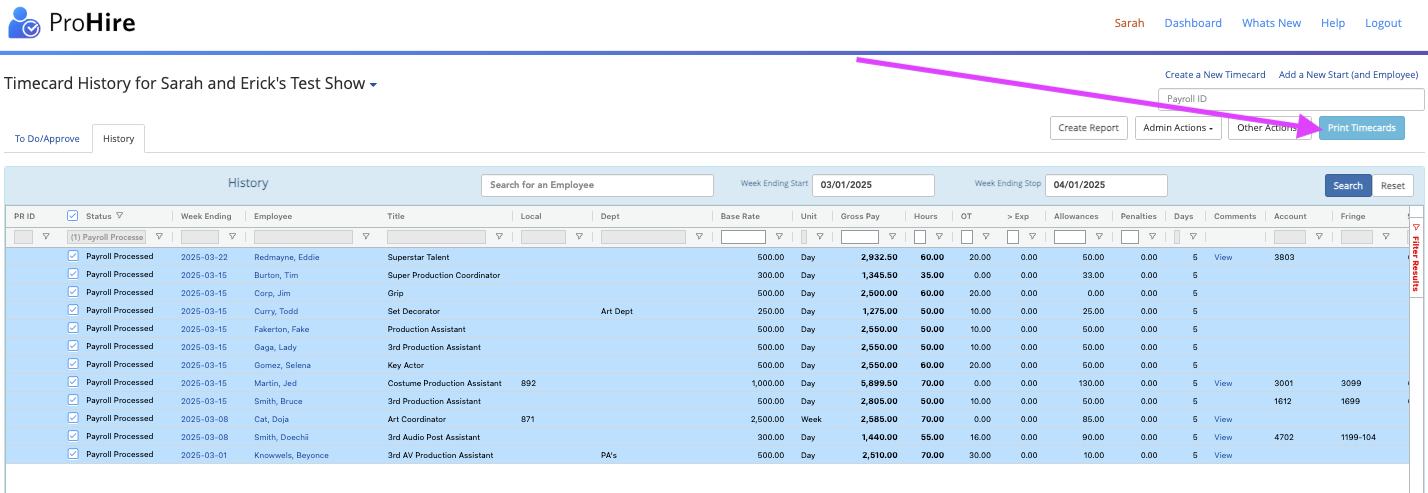
4) Select “Other Actions” then select “Print” or just "Print Timecards" if you're in the History Tab
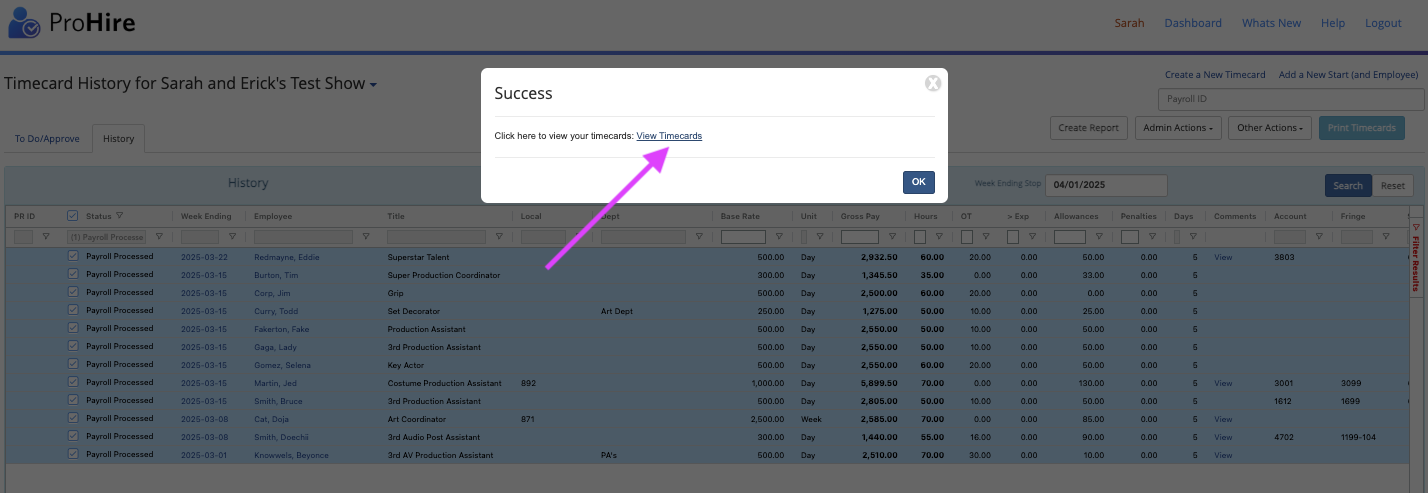
5) Click “View Timecards” to open a new browser tab with the selected timecards to print
Pro Tip:
When printing many timecards, it will give you a long, spinning wheel. Print in smaller chunks for faster download times.
Questions? Need more help?
Please email support at support@revolutiones.com or call 800-985-9238 M-F 6am-6pm (PST). If it's outside our business hours, we will get back to you as soon as we can.

