








How to Post Payroll
Once payroll is released, a payroll journal and accounts payable invoice appears in ProBooks as open items available to review and post.
1) From the Left Panel, navigate to Payroll > View All Payroll Entries
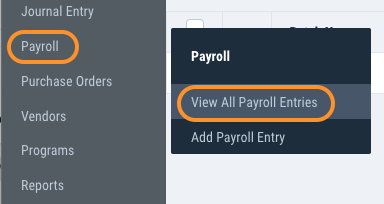
2) Click the ID or Invoice Number in blue hyperlink to open the payroll journal

3) Update the account coding as applicable

Protip: Use the Free Field column to apply coding for tax incentives. Click Split line button to split a single line of distribution into multiple lines.
4) Click Audit to generate the Audit report. Click Post to commit the transaction and update the Cost Report.

5) There will also be a corresponding invoice available in Accounts Payable > View All A/Ps
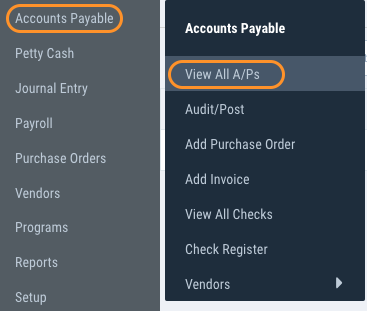
6) Select the blue hyperlink to open the payroll AP invoice.

7) Click Audit to generate the Audit report. Click Post to commit the transaction.
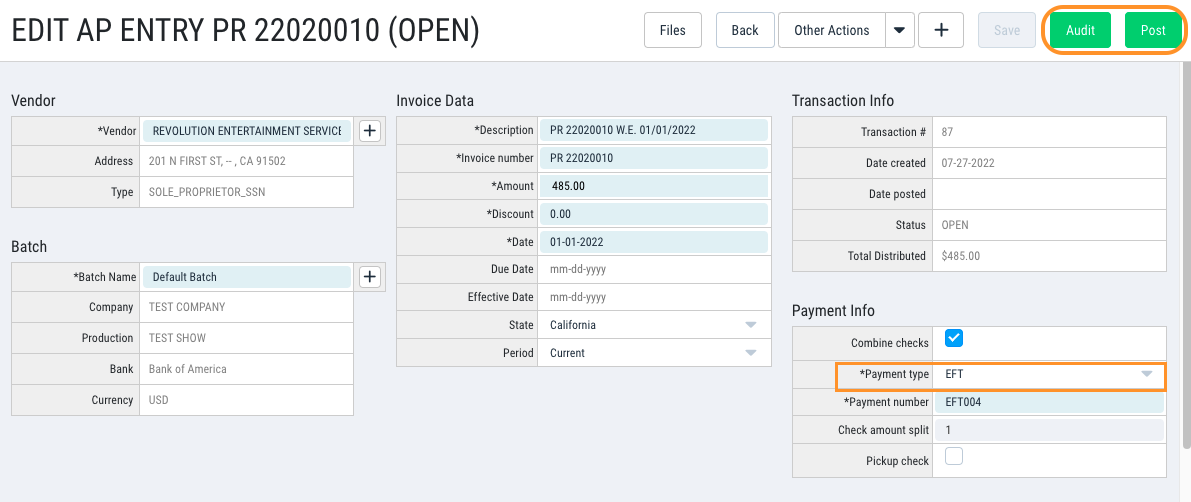
Protip: The default Payment type setup for the Revolution vendor is Check. If you will not be cutting paper checks to Revolution, Payment type can be updated in the header of the AP invoice to EFT or Wire Transfer.
Questions? Need more help?
Please email support at support@revolutiones.com or call 800-985-9238 M-F 7am-6pm (PST). If it's outside our business hours, we will get back to you as soon as we can.

