








How to Kick Back/Send Start back to the Employee
Please note: This option only applies to a start that is still in review (not e-approved)
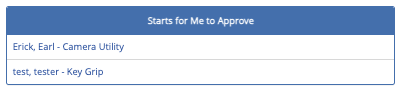
1) Go to your “Starts” tab or your "To-Do/Approve" and look under “Starts for Me to Approve,” and select the desired employee
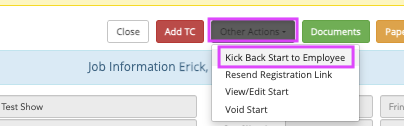
2) This will take you to the employee's start page. From here, you will select “Other Actions”. Then select “Kick Back Start to Employee.” Do not e-approve if they're missing information; kick it back instead!
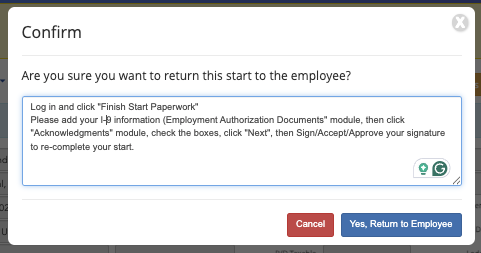
You'll then provide the employee with a reason you're kicking their start back to them, and click "Yes, Return to Employee."
- They may need clear directions on how to re-complete their start. Below is a template you can copy/paste into the field, for example, if they didn't add their I-9 information:
1) Log in and click the red Finish Start Paperwork button on your dashboard. 2) Navigate to the Employment Document Verification module, enter your I-9 information and upload pictures of your I9 document(s) via the red button 3) Navigate to the Acknowledgments module, check the boxes, click Next, and Sign/Accept/Approve your signature to re-complete your start. If your start is not complete, your payment may be delayed.
3) The employee will be notified that they need to complete their start via email. Once they've re-completed their start, it will be back in your "Starts For Me To Approve" and you can e-approve their start. Only approve their start if it's in your "Starts For Me To Approve."
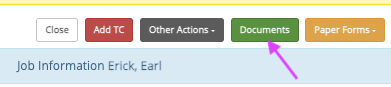
- To see any new employee-uploaded documents, select “Documents” on the employee start page
Questions? Need more help?
Please email support at support@revolutiones.com or call 800-985-9238 M-F 7am-6pm (PST). If it's outside our business hours, we will get back to you as soon as we can.

