








How to Import a Payroll to TrueBudget
You can import a .csv into TrueBudget that was exported from another system. This article will explain how to do that.
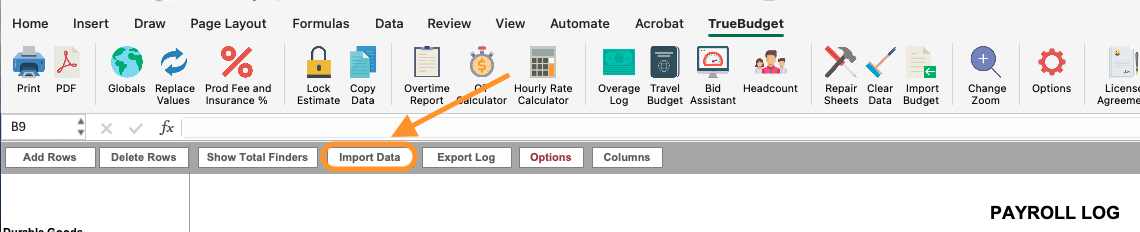
1) Navigate to the Payroll Log tab. Click the "Import Data" button, which can be found under the TrueBudget Ribbon.
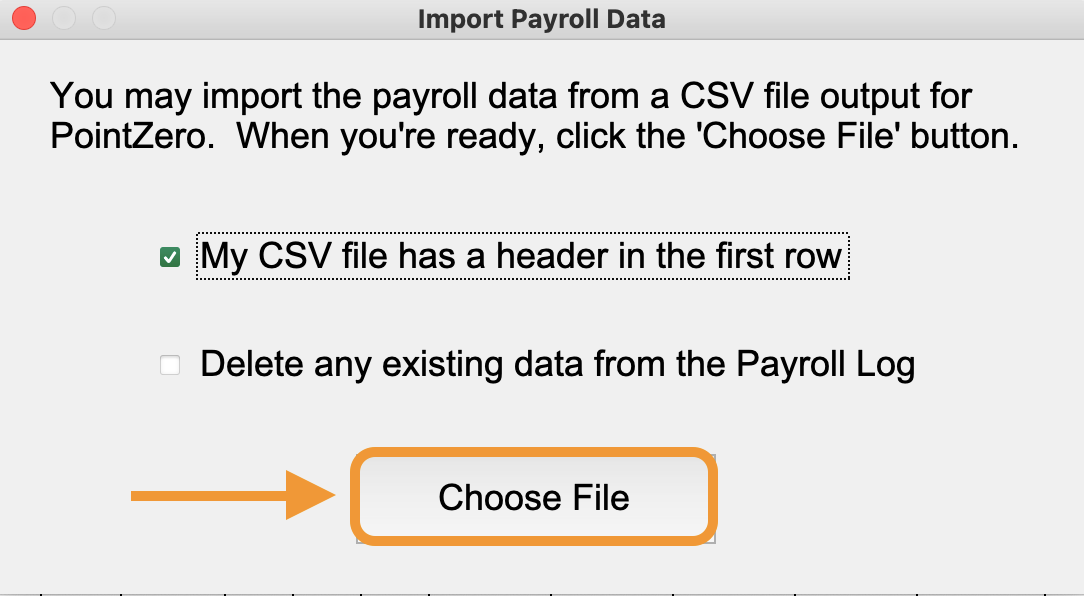
2) In the Import Payroll Data pop-up, check the options as applicable.
If you have headers in your file, check the box "My CSV file has a header in the first row". If you have existing data in the payroll log, check the box "Delete any existing data from the Payroll Log".
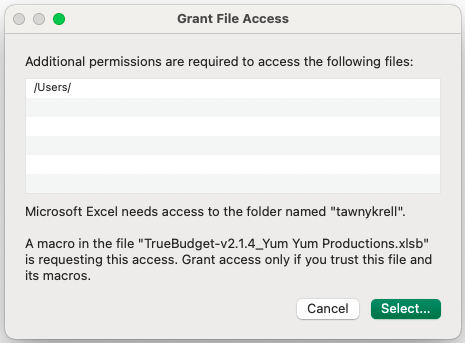
3) If you receive a message asking to Grant File Access, follow the prompts to locate the file from your computer.
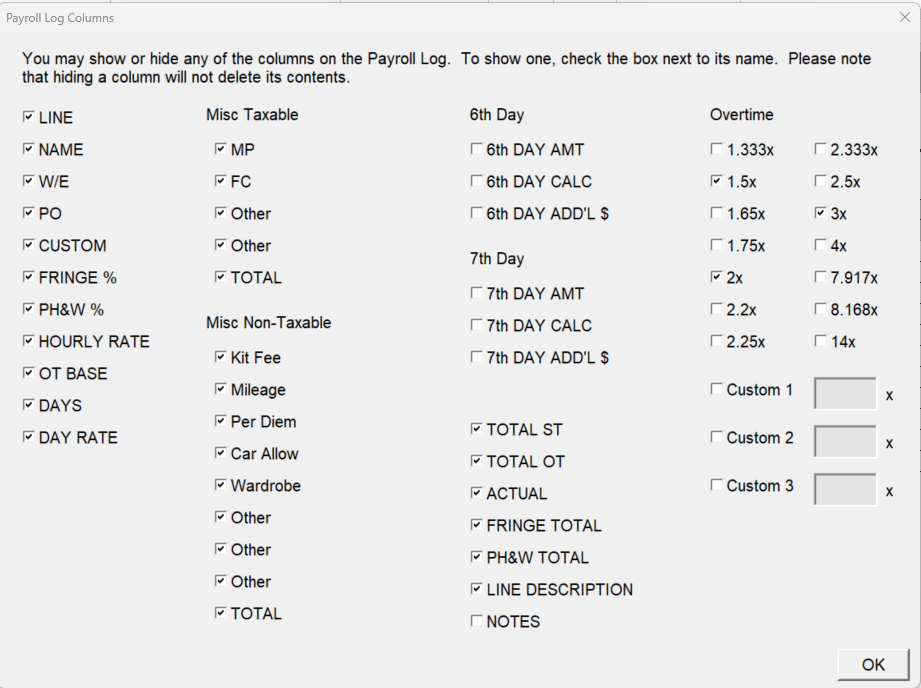
4) Select the areas of the file you wish to import.
You will see a new window that lists the various parts of the file that you can import. Select which areas of the file you wish to import, and then click OK.
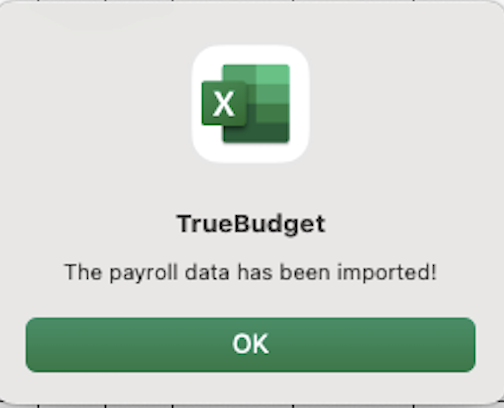
5) The payroll data has been imported! Click "OK".
Questions? Need more help?
Please email support at support@revolutiones.com or call 800-985-9238 M-F 6am-6pm (PST). If it's outside our business hours, we will get back to you as soon as we can.

