








How to Generate the GL Bible Report
1) Click on Reports > GL Bible
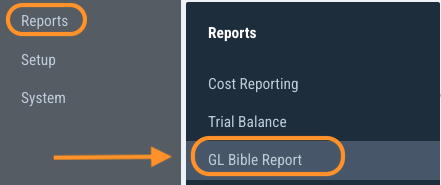
2) Select Report Parameters
Summary/Detail (Default - Detail)
Detail: detailed listing of all distribution lines in the ledger, organized and grouped by account
Summary: a list of all accounts and their associated totals
Periods/Dates (Default - All)
Period or Date Range of data to be included in the report
Company, Series, Location, Set, Free Field, Source Code, Asset (Default - All)
Pick lists to filter data. You can select multiple items in all fields except Company and Asset
Currency (Default - All)
Select which currency to include in the report
Convert To (Default - USD)
Select in which currency to convert all amounts in the report
Include (Default - all checked except PO)
Select which transaction types to include in the report
Report Output (Default - PDF)
Select the file format of the report. Options are PDF and CSV.
Account Selection (Default - All)
Select the accounts that should be included in the report
All: Include all accounts
Expenses Only: Include only Expense Accounts
Balance Sheet Only: Include only Asset and Liability Accounts
Custom
In this section, you can search for and then select the account(s) you wish to include in the report. As you type in the search field, the list will only display items that contain the characters entered.
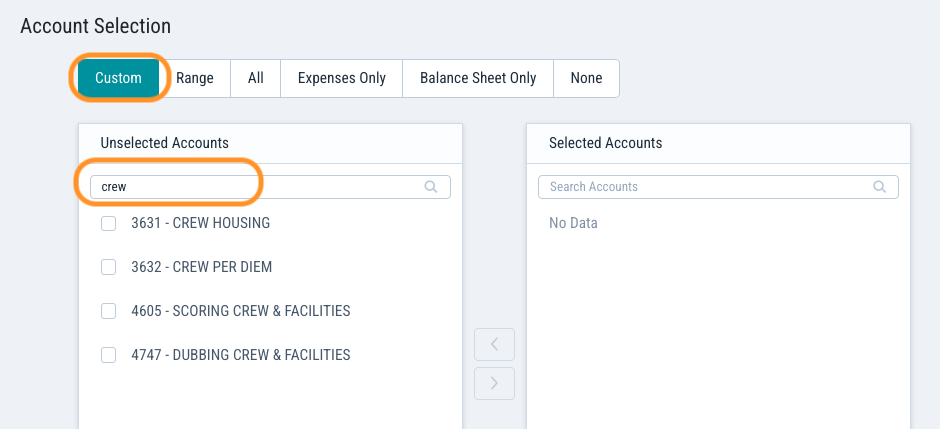
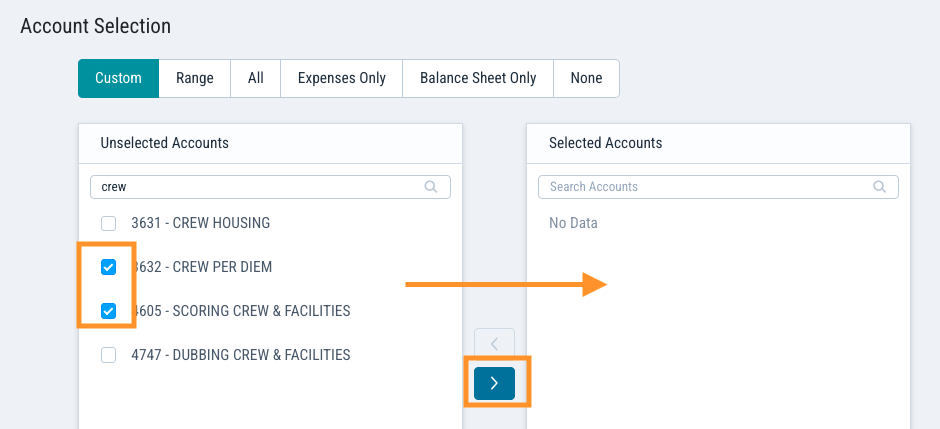
Use the checkboxes next to each account to select the desired account(s) and use the < and > buttons to move accounts between the Unselected Accounts and Selected Accounts sections. All items in the Selected Accounts section will be included in the report.
Questions? Need more help?
Please email support at support@revolutiones.com or call 800-985-9238 M-F 7am-6pm (PST). If it's outside our business hours, we will get back to you as soon as we can.

