








How to Generate a Trial Balance Report
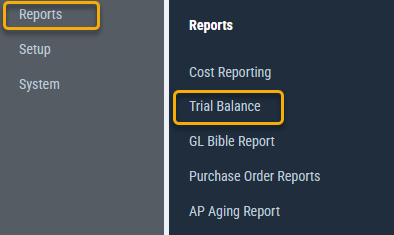
1) Click on Reports > Trial Balance
2) Select Report Parameters
Format (Default - Standard)
General Format of the Report
Basic: Subtotal at Account Type
Standard: Subtotal at Category and Account Type
Periods/Dates (Default - All)
Period or Date Range of Current Activity to be included in the report
Company, Series, Location (Default - All)
Pick lists to filter data. You can select multiple items in the Series and Location fields
Report Output (Default - PDF)
Select the file format of the report. Options are PDF and CSV.
Condense Expenses (Default - checked)
Checked: Summarize all Expenses in one line
Unchecked: Display all Expense accounts individually
Include POs (Default - unchecked)
Checked: Include POs in amount calculations
Unchecked: Do not include POs in amount calculations
Hide $0 Accounts (Default - checked)
Checked: Do not display any account whose Beginning Balance, Current Balance, and Ending Balance equal zero
Unchecked: Display all accounts
3) Click Run Report to generate the Trial Balance with the selected report parameters
Questions? Need more help?
Please email support at support@revolutiones.com or call 800-985-9238 M-F 7am-6pm (PST). If it's outside our business hours, we will get back to you as soon as we can.

