








How to Enter Payroll
Once payroll is released, payroll invoices are loaded into ProBooks as Open transactions ready to be reviewed.
All payroll entries previously loaded into Probooks will be listed when you select View All Payroll Entries.
This article will go over the steps to add new payrolls.
1) From the left panel, select Payroll then select Add Payroll Entry
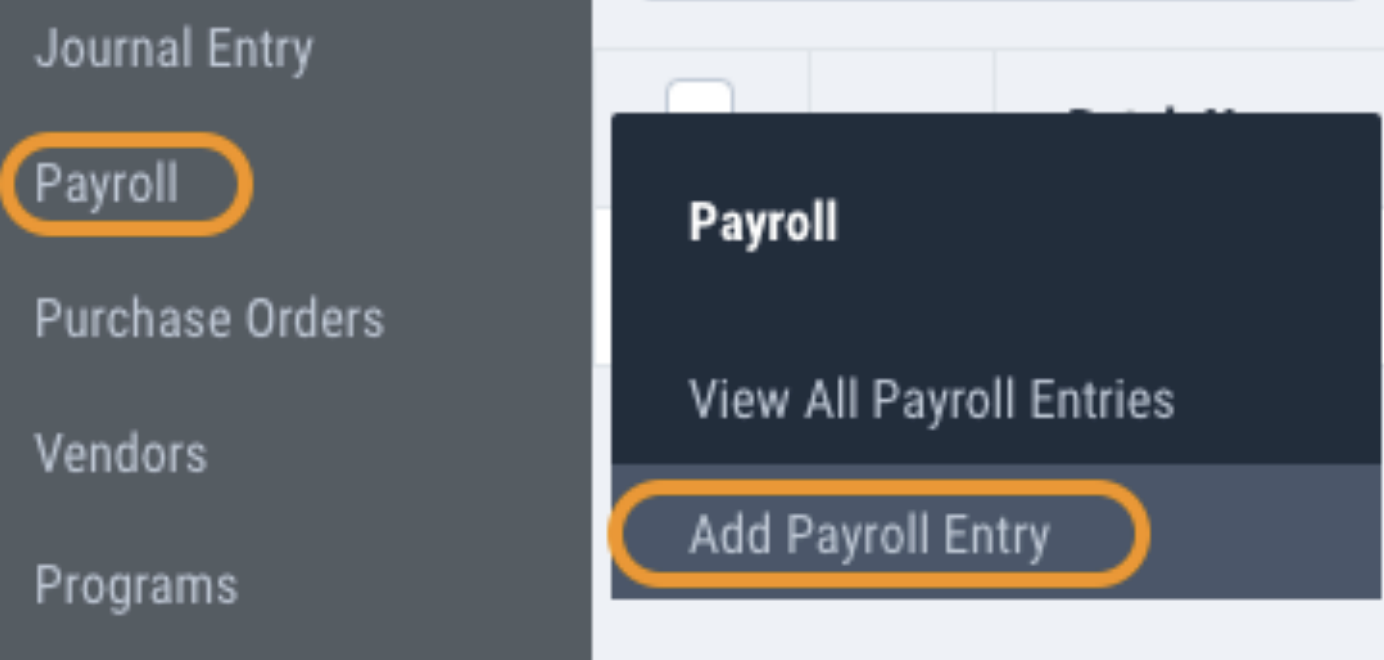
2) Select your batch or create a new one
In the Batch Information section, this will be automatically filled in based on the last information you entered. You can type to search and select an existing batch. Click the plus button to create a new batch.
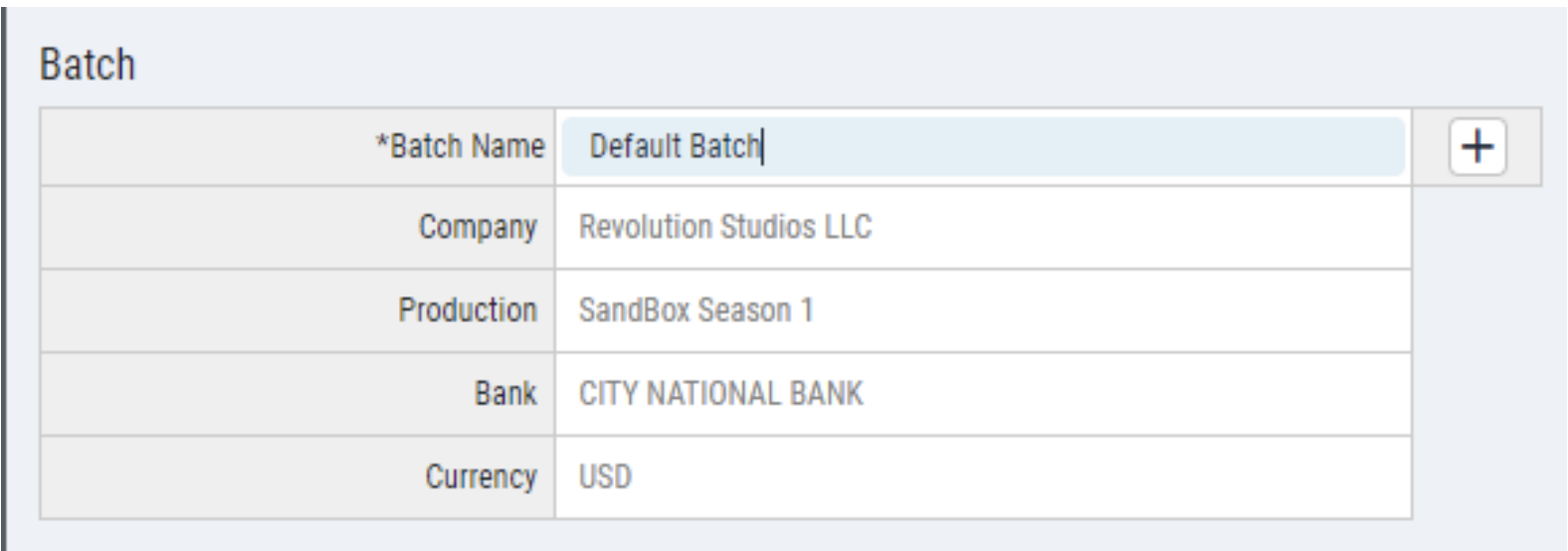
3) Fill in the mandatory fields for Transaction Data
In the Transaction Data section, the fields with the (*) next to the label are required fields and must have information to be able to save the transaction.
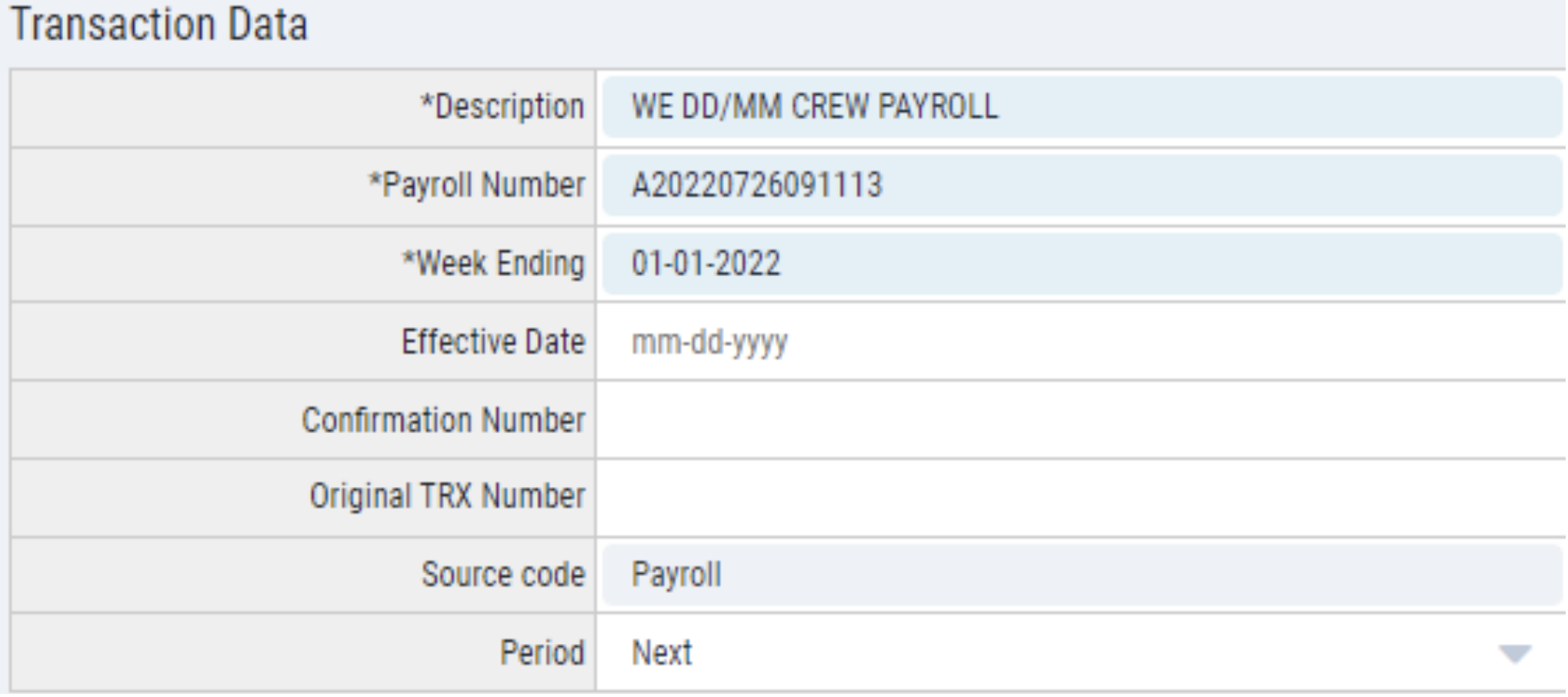
4) Fill in the mandatory fields for the Distribution Lines
In the Distribution Lines section, the fields with the (*) next to the label are required fields and must have information to be able to save the transaction.

5) Import multiple lines of data using the Paste Values button
This will allow you to import multiple lines of data at once from an excel template. The Add line button will place an additional line at the bottom of the entry screen to continue manual entry on the transaction.

This Paste in Values window will allow you to copy (Ctrl+V) multiple lines of data for import into the transaction.

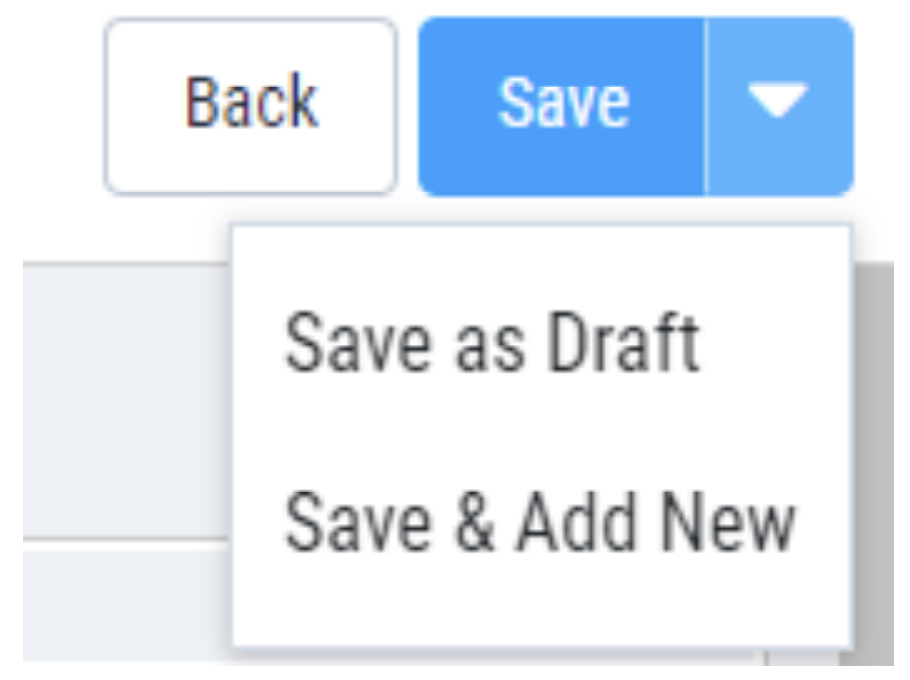
6) Choose your save method
Once the entry is complete on the transaction, there are three options for saving a transaction, Save, Save as Draft and Save & Add New. The transaction Status after Save is Open (Unposted).
Questions? Need more help?
Please email support at support@revolutiones.com or call 800-985-9238 M-F 7am-6pm (PST). If it's outside our business hours, we will get back to you as soon as we can.

