








How to create and edit your calendars
Get smart results with proper planning, organizing and reviewing events on a smart dashboard!
ProCal helps you create easy-to-use calendars that make production scheduling a breeze!
Creating a Calendar
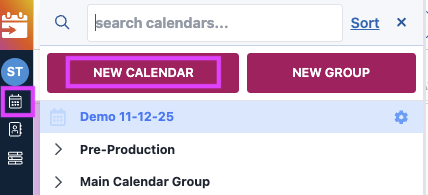
1) Click on the Calendar icon in the side bar on the left, then click on "New Calendar" to create a new one
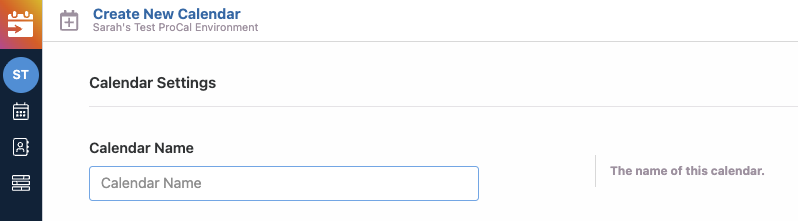
2) Give it a name, and choose your additional options
Add to a Group
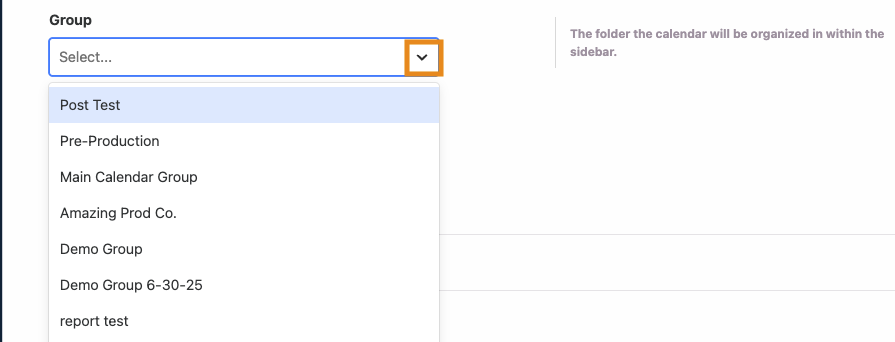
Select a Group to which you want your calendar to belong to via the down arrow, or type the name of a new group
or

You can also undo the group selection by clicking on ‘x’

Customize the appearance
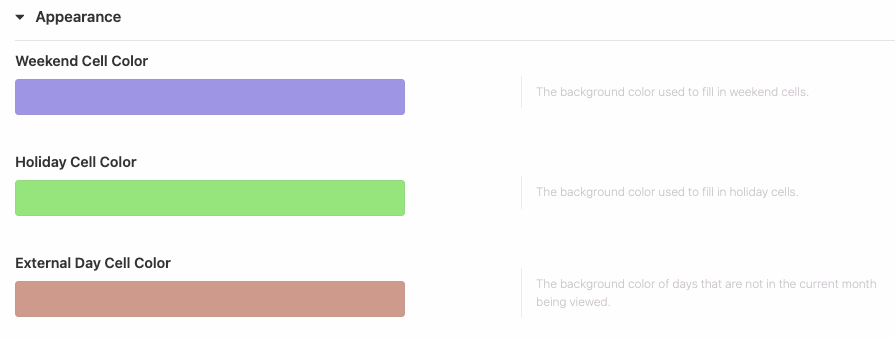
The Appearance feature allows you to customise the way the calendar looks. Click into the cell color to change the color. External days are for the PDF.
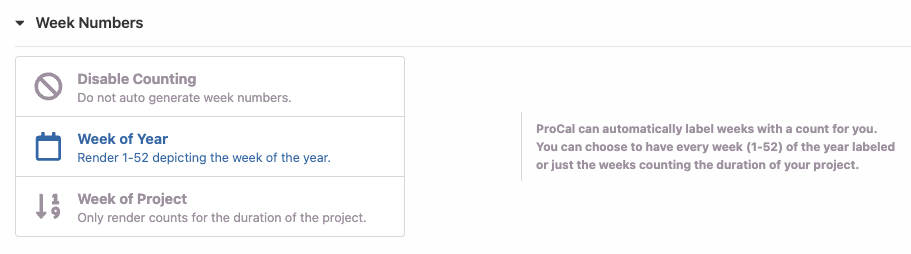
Add or Configure Week Numbers
Week numbers are the integrated numbering rendered on all of the weeks of the calendar
- Week of Year - Renders a weekly countdown to indicate which week of the year it is. It shows a total of 52 weeks in all.
- Week of the Project - Dynamically counts the weeks of the project where week one occurs where the earliest event appears
Weekend Options
There is an option to provide interruptions. Interruptions are when ProCal automatically break apart events as you drag and drop them around the calendar so that they cannot occur on certain types of days. You can select "Interrupt during weekends" or "Run during Weekends".
- This currently does not save at the calendar level. Please adjust on individual events via additional settings to run/pause each event on weekends)
Holiday Options
Holidays are configured much like Weekends - you can choose whether or not events are interrupted on holidays.
- This currently does not save at the calendar level. Please adjust on individual events via additional settings to run/pause each event on holidays)
You can generate any optional holiday schedule(s) from the predefined list or the Advanced List to select the unions you will be working with to add their holidays to your calendar. See this article to add any individual holidays.
Print Headers and Footers
This helps to predefine the headers and footers that will appear in the PDF when exporting the PDF to share with others.
- This currently does not save at the create calendar level. Please add your headers and footers on the PDF feature itself once the calendar is created. Click the PDF button to the left of the + button in the top-right corner of your calendar, and see this article for more information.
Turn on "Backup Your Calendar"
Generating a backup feature helps you to generate a snapshot of the calendar so you can revert back to the version before you made these changes. This is useful if you've added a lot of events and many changes to a calendar and need to make adjustments.
Once your calendar is created, click the settings gear, additional settings, scroll to the bottom, and select "Backup Your Calendar," then "Update Calendar."
Organizing Your Calendars
You can find your new calendar on the calendar list when you click the Calendar icon on the left side of your screen. You will see a list of folders as well, that can be moved using the ‘Sort’ option.
Change the order of your calendars
In the Calendar menu, you can sort the folders manually by clicking the "Sort" button and then dragging and dropping them in place. Click on "Done" to save your changes.
Create groups for your calendars
You can also create groups in the Calendar drawer, by clicking on "New Group" button and then adding a new Name and "Save Group".
The New Group (My New Calendar in the example below ) will appear in the calendar menu.
Once you create a new calendar, it becomes very simple to work using ProCal app!
Questions? Need more help?
Please email support at support@revolutiones.com or call 800-985-9238 M-F 7am-6pm (PST). If it's outside our business hours, we will get back to you as soon as we can.

