








How to Create a Timecard for Your Crew member/Employee
1) Please log in at the following URL: http://approvers.revolutiones.com/
2) After logging in, select a project or show to access the approver dashboard and click “Create a New Timecard”

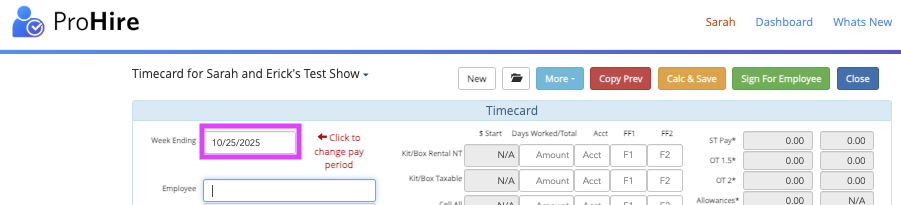
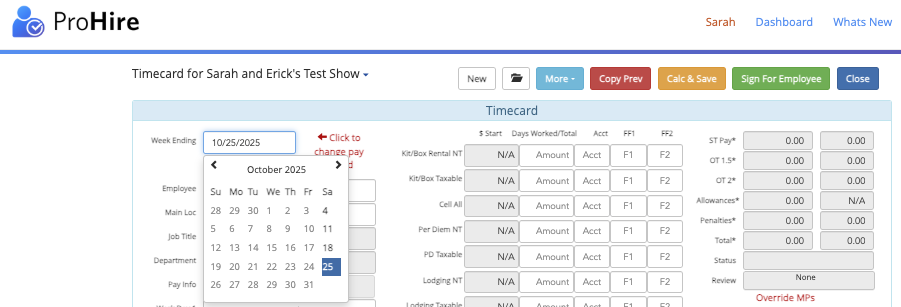
3) Once a new timecard is created, ensure that the correct Pay Period is indicated
By default, the timecard will be set to the current week. Select the Week Ending and select a new pay period if necessary.
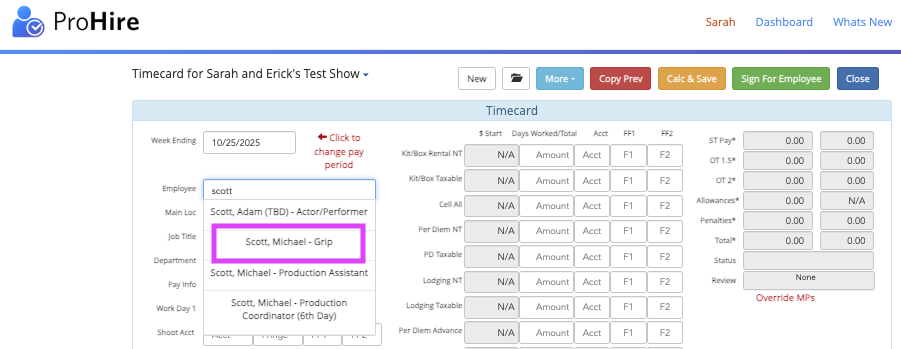
4) In the Employee field, enter the employee name.
Matching crew member names will display in the drop-down to select.
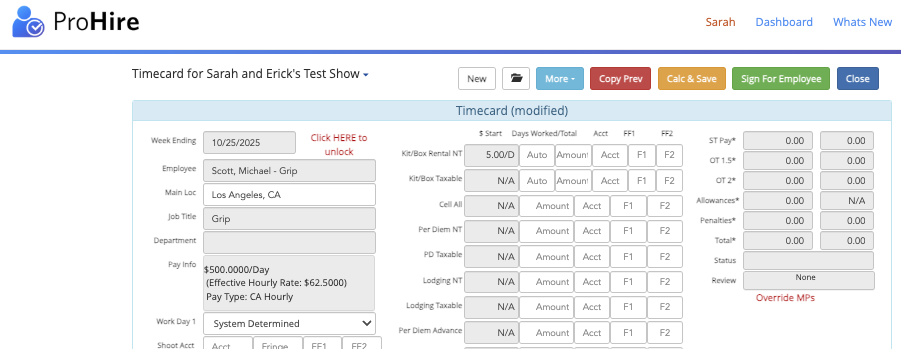
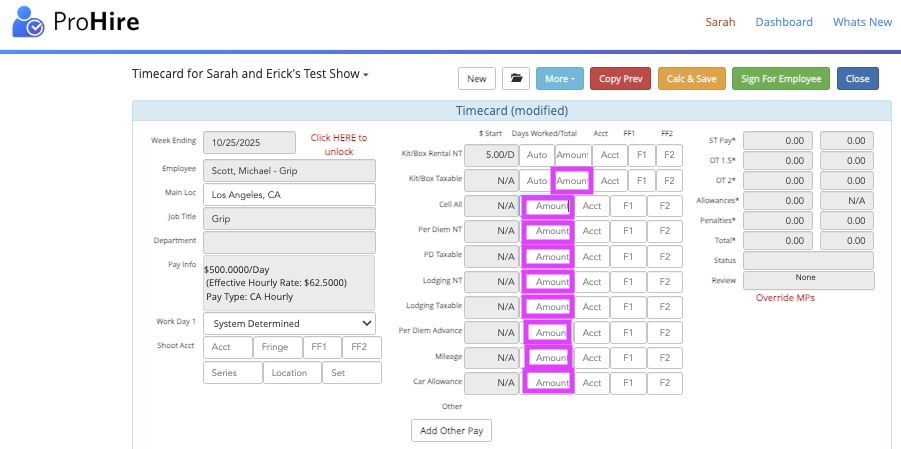
*please note, if entering kit rental, per diem, mileage, car rental, or other dollar amounts, please do not type a dollar sign, just the numerical amount.
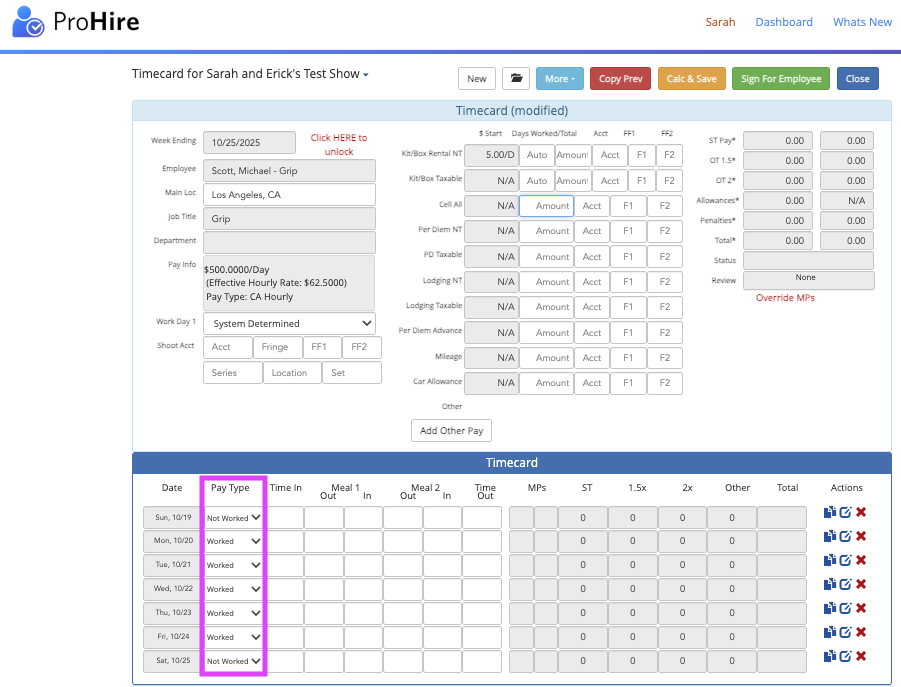
5) Select a pay type for each date
6) Enter work times or click on “Copy Previous” to copy hours from a previous card
See the table below for the various time entry methods supported.
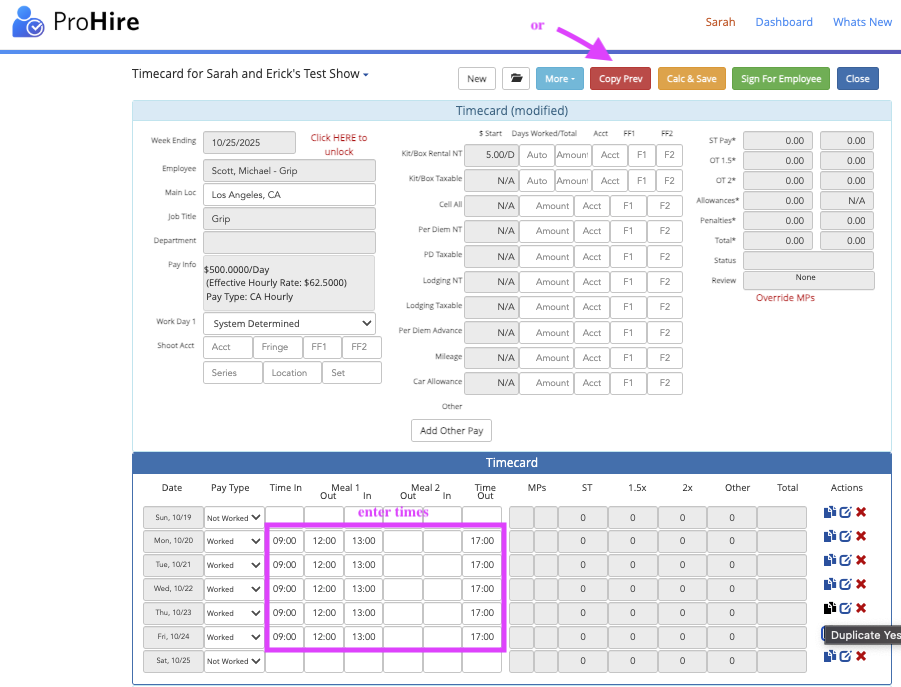
- Please note: Exempt or salaried employees are not required to enter times before calculating
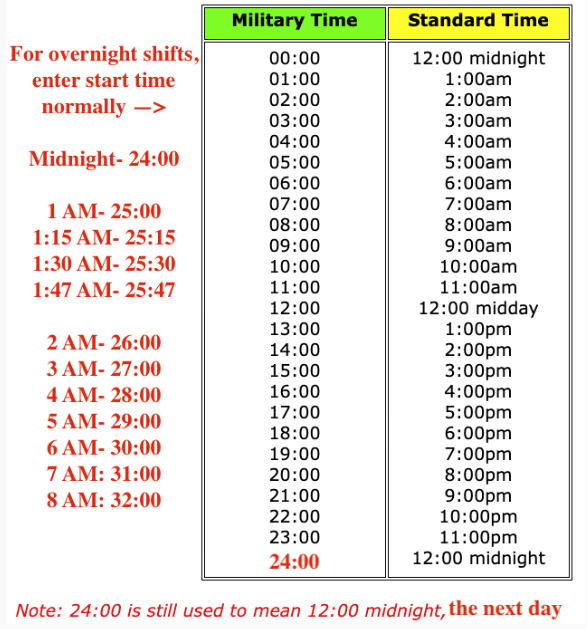
- To enter overnight shifts, enter 24:00 for midnight and enter in military time for the times that go into the next day:
7) To calculate the timecard, click on “Calc & Save"
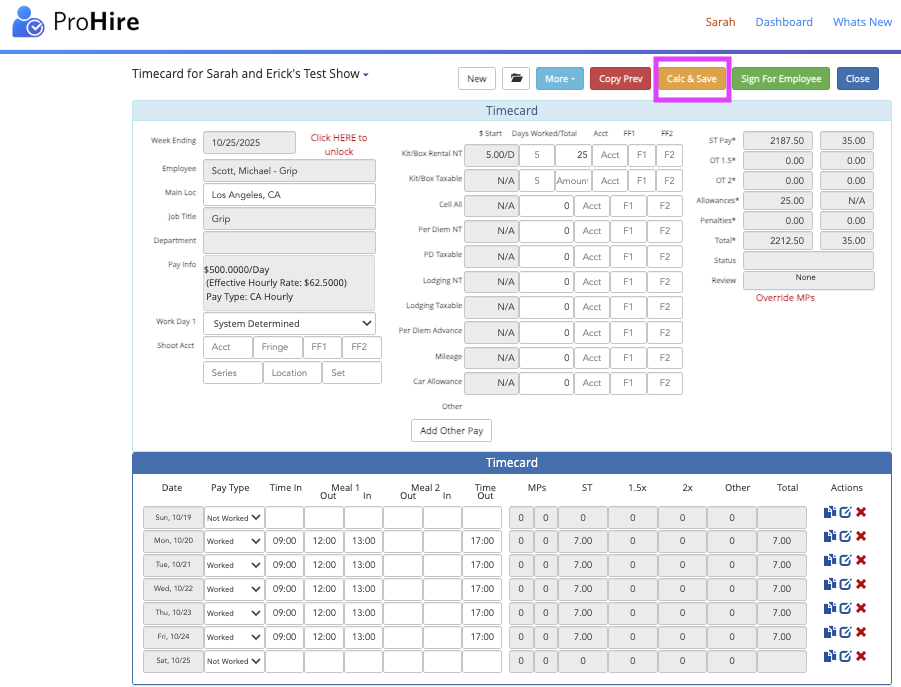
The employee can then sign off on the timecard, or you can sign on their behalf by clicking "Sign For Employee"
Questions? Need more help?
Please email support at support@revolutiones.com or call 800-985-9238 M-F 7am-6pm (PST). If it's outside our business hours, we will get back to you as soon as we can.

