








How to Change a Week-Ending Date on a Timecard
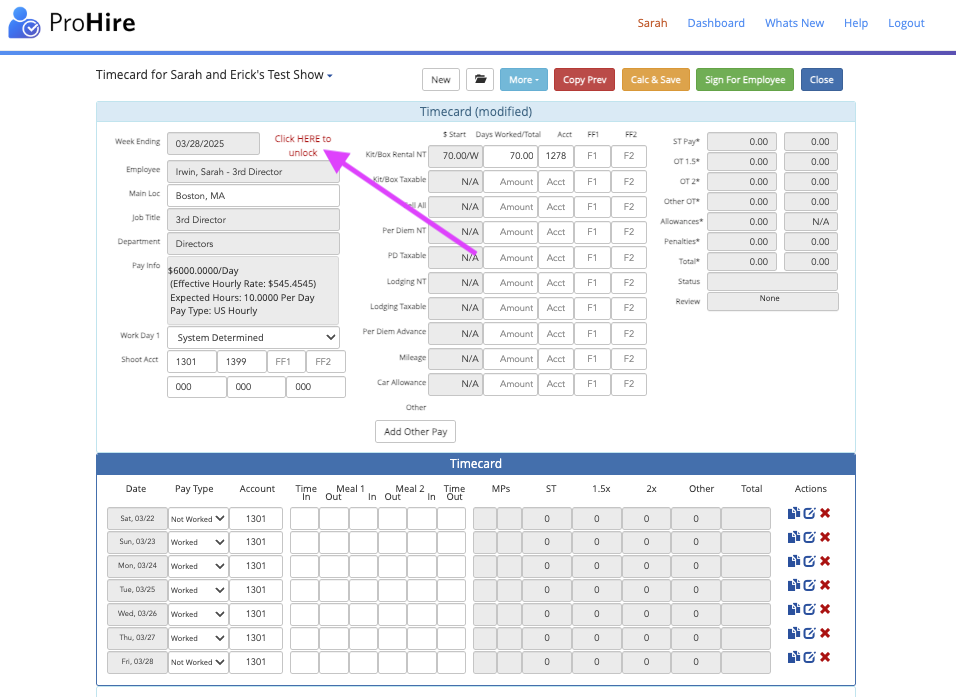
1) Within a new Timecard, select "Click Here to Unlock" to Change Week-Ending or, if it's an existing timecard, click "More" -> "Change Week Ending" on an existing Timecard.
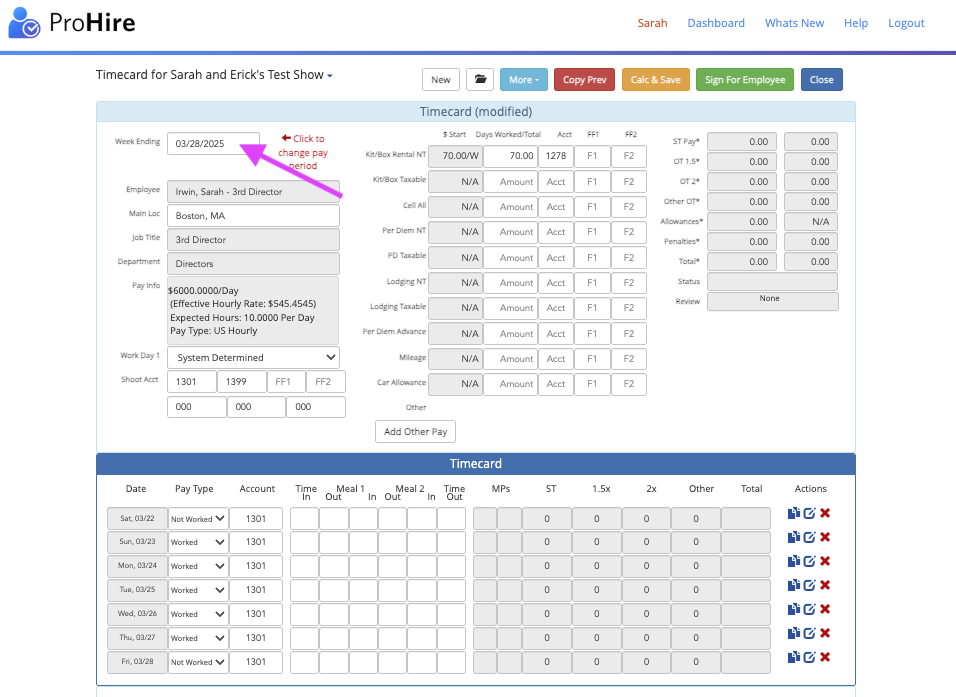
2) Click on the date box to change the pay period; a Calendar will appear
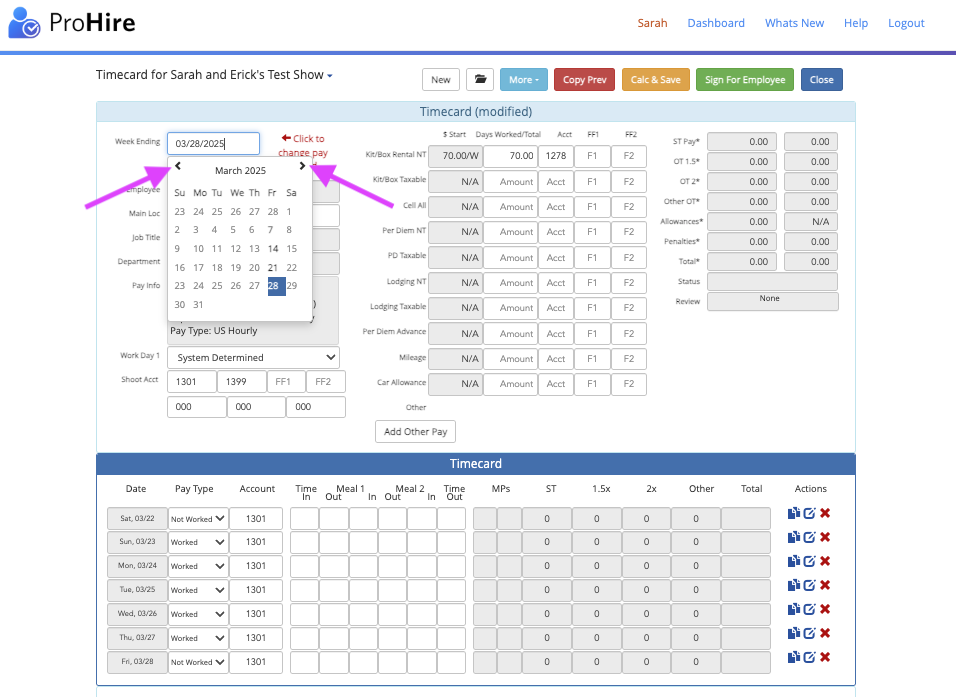
3) Choose the Week-Ending date on the Calendar, and to change months, click the arrows near the month description
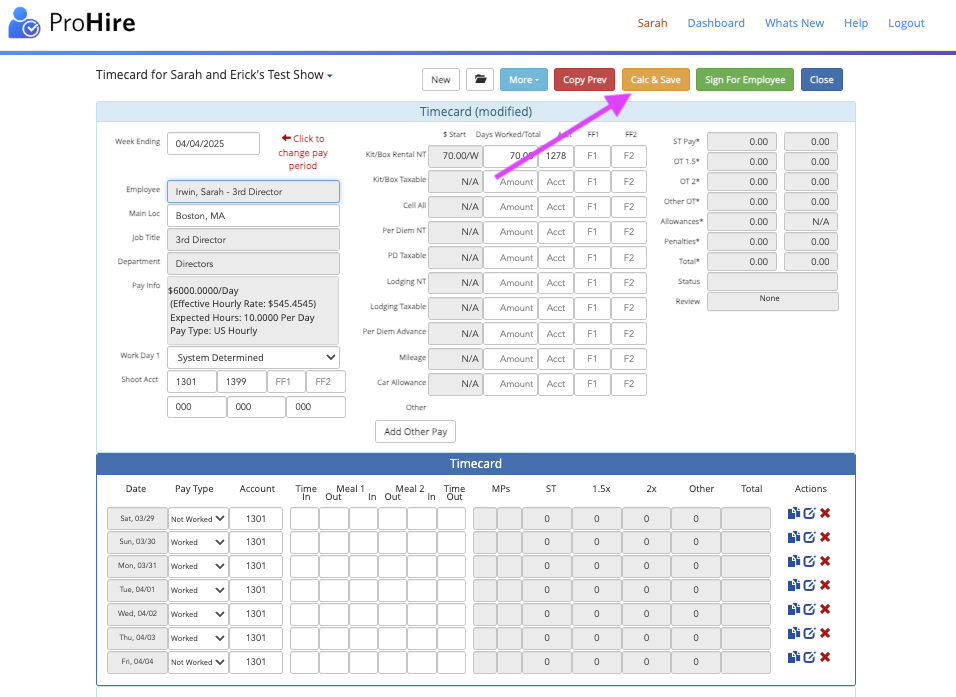
4) After updating the week-ending date, select “Calc & Save” to apply the change
Questions? Need more help?
Please email support at support@revolutiones.com or call 800-985-9238 M-F 6am-6pm (PST). If it's outside our business hours, we will get back to you as soon as we can.

