








How to Approve Starts and Verify I-9s
1) Select the "Starts" tab to view the status of employee starts
A Red number next to the Start tab indicates starts are available for your review and approval.
A Gray number next to the Start tab indicates starts are available for someone else to approve if there are multiple approvers on your project.
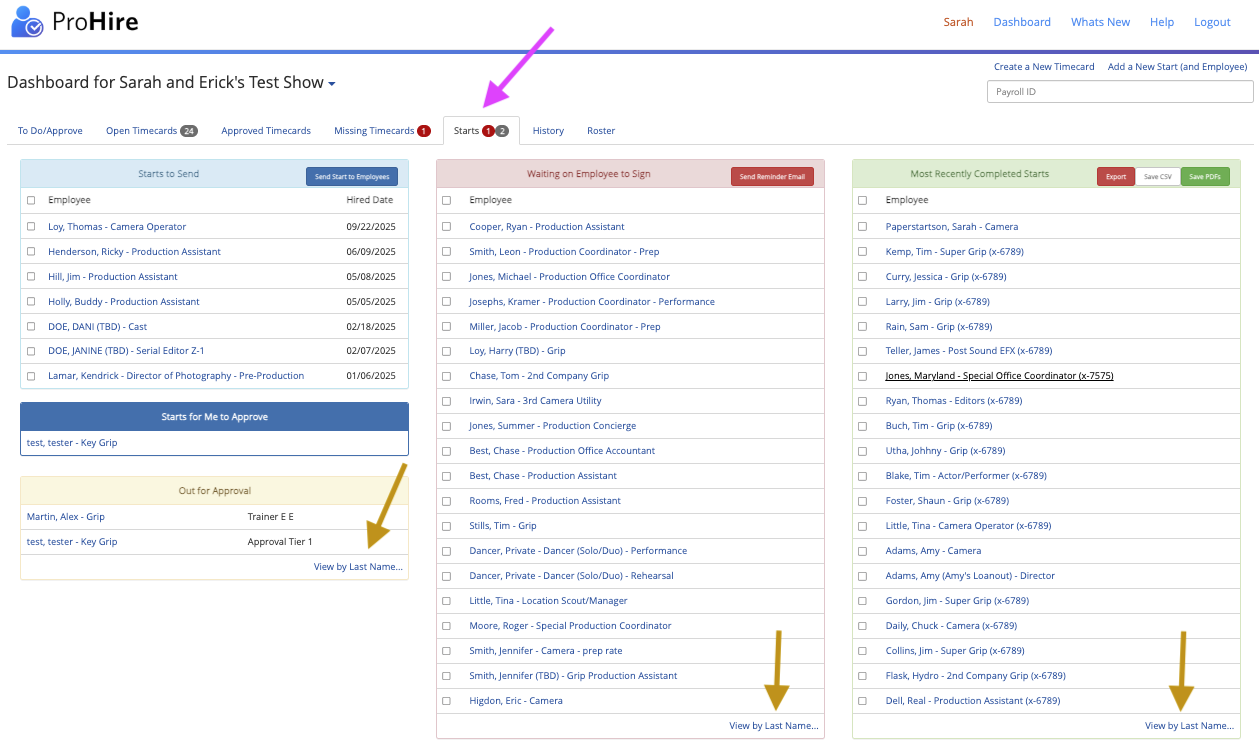
- Click "View By Last Name" in any of the windows to expand the lists to see everyone. When you first open the Starts tab, it cuts the lists off after 20 people.
2) For each employee in "Starts for Me to Approve" (or Starts Needing I-9 Verification if you are the designated I-9 verifier for your company or show), click on each employee to review
3) Review the employee's information
Please carefully review the job information (Title, Rate, etc.) and employee information (Name, Address, etc.).
To perform an I-9 Review:
First, click the green "Import I-9 data" button
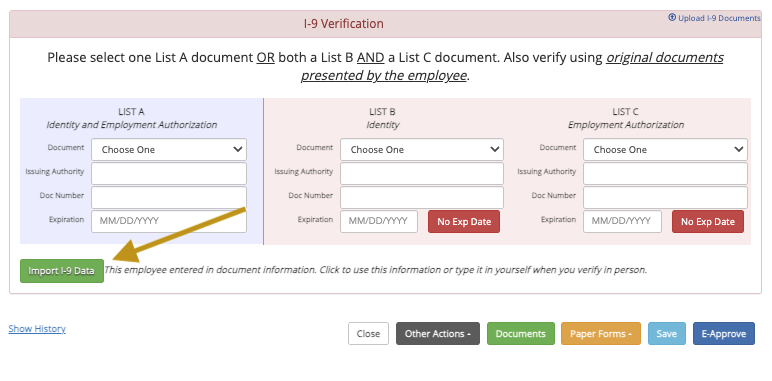
- If the employee is present and shows you the original documents, please accurately verify or enter the information in the I-9 section. If the I-9 information is correct, please check the certification box.
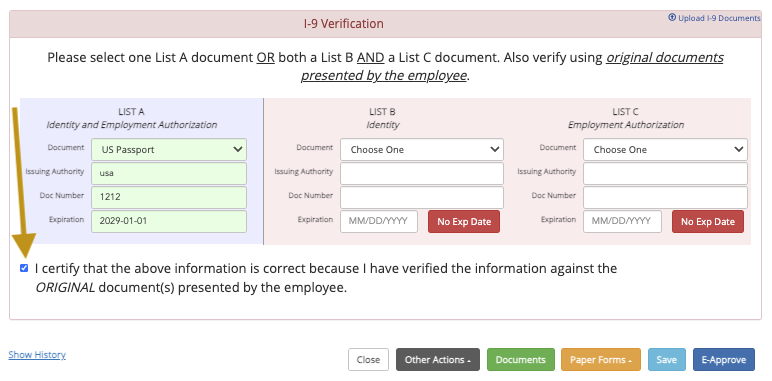
- If the employee is not present or does not have the original documents, do not check the box.
3) E-Approve The Start
Click “E-Approve” to accept the start. If you are not ready to approve, you may “Save” at any time.
Advanced Options
1) Under “Other Actions,” you may allow an employee who is present to complete the Start with your computer. Please note that once you allow that employee onto your computer, this action logs you out and logs them in. To log back in as an approver after they've completed their start on your computer, click: http://approvers.revolutiones.com.
2) If the employee is missing information, under “Other Actions,” you may kick the start back to the employee before E-Approving.
3) If you need to make a change to their rate or job title, do not E-Approve, but click "Other Actions">"View/Edit Start">"Other Actions"(again on their start info page)>"Change Start">Make the necessary changes>"Resend to EE." The employee will have to re-sign their start, agreeing to your changes, and once they do, it will be back in your "Starts For Me To Approve." Only approve a start if it's with you to approve.
Questions? Need more help?
Please email support at support@revolutiones.com or call 800-985-9238 M-F 7am-6pm (PST). If it's outside our business hours, we will get back to you as soon as we can.

