








How to Approve a Timecard
1) Navigate to the "To Do/Approve" dashboard tab
Use available filters such as week ending to review and approve specific timecards
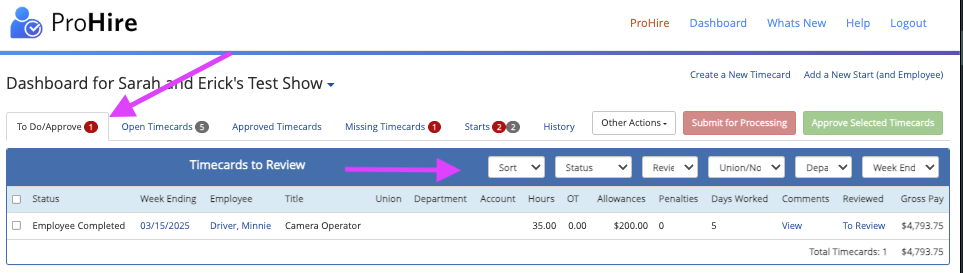
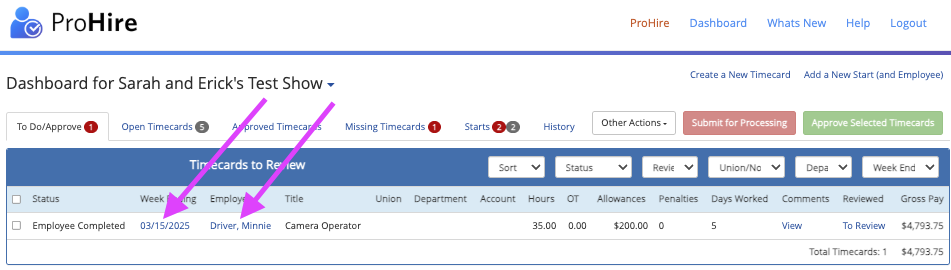
2) Review timecard hours, OT, penalties, and comments from the dashboard or click into the timecard for further details via the employee's name or week-ending date
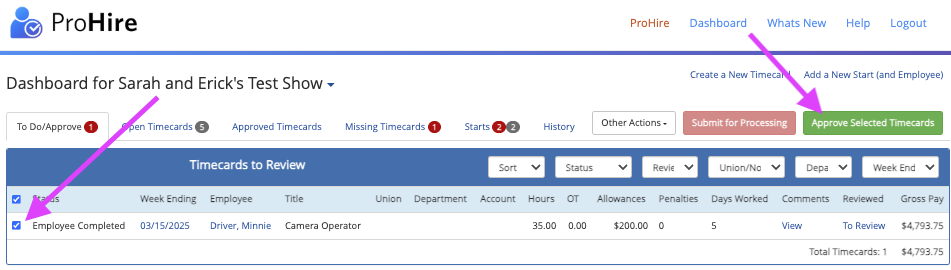
3) Select the timecards that are correct and ready to be approved, then click Approve Selected Timecards
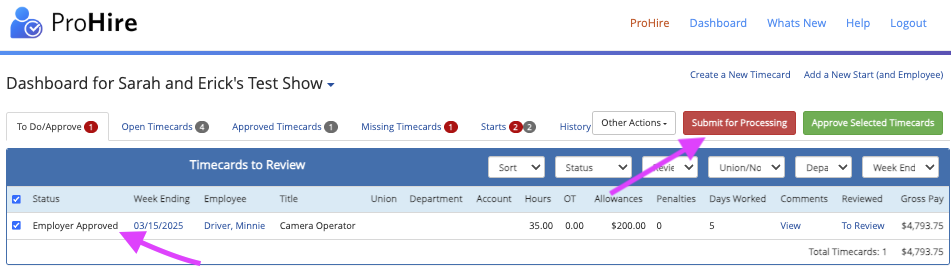
4) Select your approval type to approve selected timecards

- Selecting “Normal Approval” on a project with multiple approvers will promote the approved timecards to the next approver in the project's approval flow.
- If authorized, select “Give Final Approval” to submit directly to Revolution for processing. Do not use this function unless you have been instructed to do so.
- Once approved if you don't click "Submit for Processing" on the pop-up, you'll submit the TC for processing separately (red button) and Revolution will provide an “edit/pre-invoice” for final review and approval by email.
5) Navigate to "Open Timecards" to view timecards with another approver or an employee
Approvals can be completed within "Open Timecards" by selecting "Other Actions" and choosing Approve if you have Final-Approver status to bypass other approval tiers.

Questions? Need more help?
Please email support at support@revolutiones.com or call 800-985-9238 M-F 6am-6pm (PST). If it's outside our business hours, we will get back to you as soon as we can.

