








How to Add a New Location to a Timecard
1) Open a new Start (you'll have to add a location to an unpublished start in order for it to be available on a timecard)
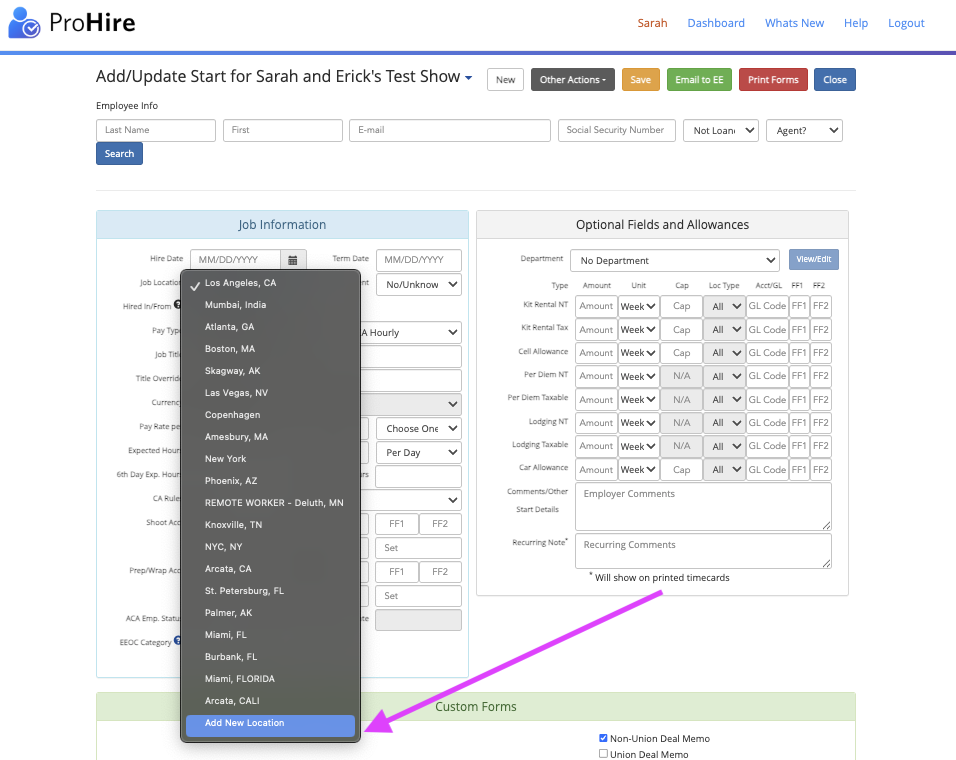
Add a new location from the Job Location drop-down. The “Name” field is the location’s name (ex. Los Angeles, CA), not the employee’s name.” If it is a Union location, please fill in the applicable fields.

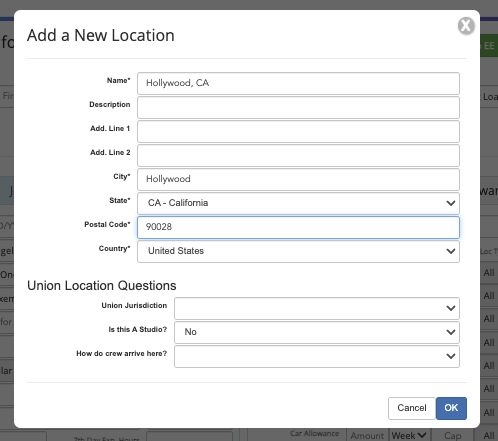
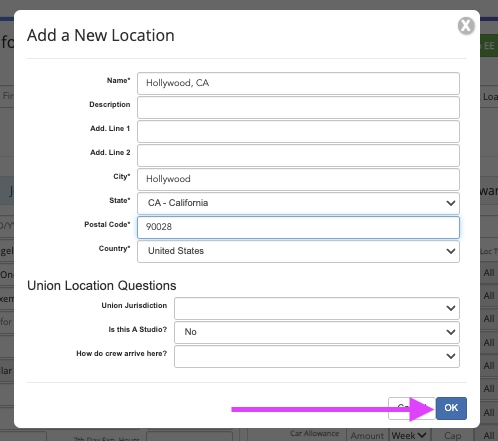
2) Click the blue “OK” in the lower right-hand corner
3) No need to save the start, you can exit the page.
The new location you added can now be used on anyone’s timecard. If you have a timecard open, refresh the screen and your new location will be available
<p><iframe src="//www.youtube-nocookie.com/embed/hR9J0zmuHZY" width="560" height="315" frameborder="0" allowfullscreen=""></iframe></p>
Questions? Need more help?
Please email support at support@revolutiones.com or call 800-985-9238 M-F 6am-6pm (PST). If it's outside our business hours, we will get back to you as soon as we can.

