








How to Add a Foreign Address for a Vendor
Step 1)
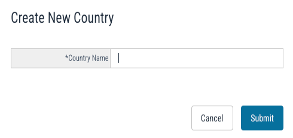
Add the Country under “System” -> “Countries”

Click the “+” button and add a new country

Click "Submit"
Step 2)
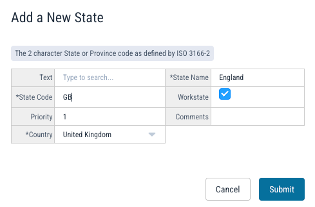
Add the state (under “System”) via the “+” button:

-Always list the priority as: 1
-Check off "Workstate”
-Type the "State" (area or province) name
-Google the 2-character state/province code (as defined by ISO 3166-2)
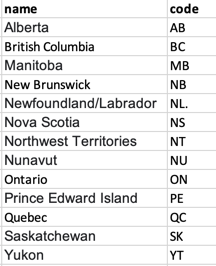
Here are some of the Canada state (province) codes for easy reference:
If you’d like, you can add a generic foreign state with FO as the state code and “Foreign” as the State Name (make sure you’ve added the correct country first and select it).
If you need to add multiple foreign locations, you can add them as such:
Code * State Name * Country (you have to add the Country first)
FA * Foreign-Australia * Australia
FU * Foreign-UK * United Kingdom
FC * Foreign-Canada * Canada
FI * Foreign-Ireland * Ireland
FG * Foreign-Germany * Germany
You cannot reuse a state code, so remember which codes you've used.
Please note- with the generic foreign codes, they will print as such on physical checks. This option works best for wires.
Step 3)
Your Foreign state/country is now available on vendors.
Questions? Need more help?
Please email support at support@revolutiones.com or call 800-985-9238 M-F 7am-6pm (PST). If it's outside our business hours, we will get back to you as soon as we can.

