








Holiday or blackout day? How to adjust for days off
You'll have days off - here's how to account for them on your calendar
Adding Holidays
1) Make sure your calendar is configured with the correct holidays
ProCal allows you to select holidays from a variety of federal holiday and union calendars. Check your settings by clicking on the calendar icon on the left, then click the gear icon to the right of your calendar's name.
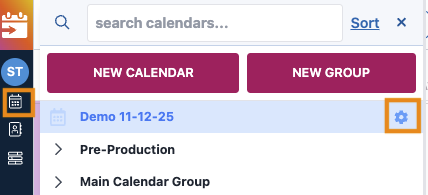
Scroll to and click on "Holidays" to expand the options. In the example below, you'll see that US holidays have been selected for our calendar.
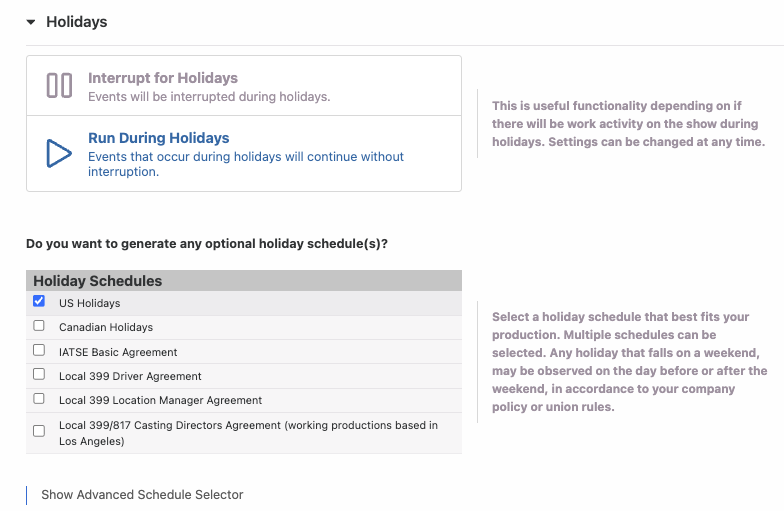
If you want to interrupt all your events if they run through a holiday, you can click on "Interrupt for Holidays". This will prompt the event to skip the holiday and continue on the following day.
If you want all your events to continue through the holidays, you can click "Run During Holidays."
Please note these are universal rules for every event on your calendar, but it is possible to make exceptions for certain events. We'll show you how below.
2) Add other holidays as needed
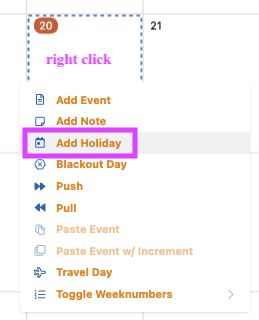
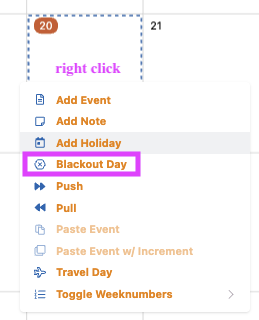
To add another holiday on your calendar, use the contextual menu, right click on the date (in this example, Nov 20th), then click "Add Holiday.”
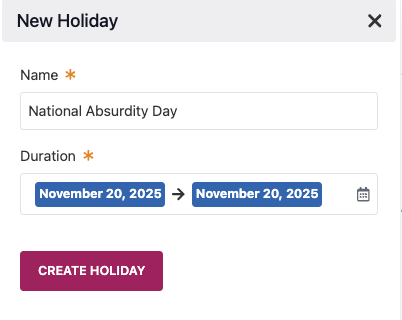
You'll be able to add a holiday name and duration, then click "Create Holiday".
Any events adjusted to not run on holidays will skip the date of your holiday and continue on the next day.
Add Dark Days
The process is virtually the same as adding a holiday in step 2, except you click "Blackout Day" from the list.
Run or Pause on Holidays and Blackout Days
Individual events
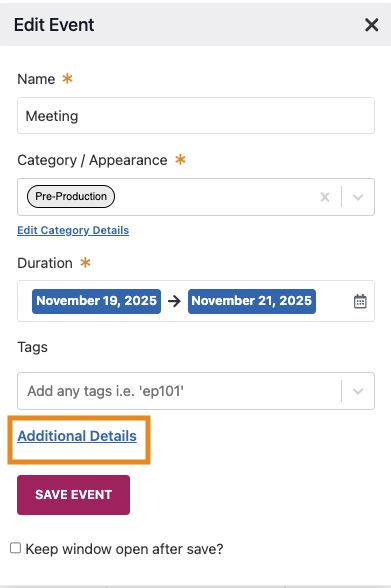
A) Double click on an event to open the options menu
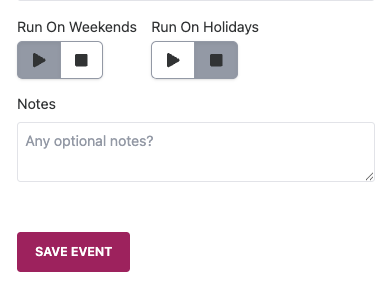
B) Click "Additional Details," and scroll down to "Run on Weekends" and "Run on Holidays"
- If the triangle icon is grey = this event will run
- If the square icon is grey = this event will NOT run
- In the example below, this event will run on weekends but will not run on holidays.
Once you're finished, click on Save Event to save your changes.
Now you know everything about adding holidays and blackout days to your calendar!
Questions? Need more help
?Please email support at support@revolutiones.com or call 800-985-9238 M-F 7am-6pm (PST). If it's outside our business hours, we will get back to you as soon as we can.

